

What you can do with the Detrics HubSpot Integration
- Pull CRM data into spreadsheets. Build pipeline reports, lifecycle analyses, and revenue dashboards in Google Sheets without copy-pasting.
- Power Looker Studio dashboards. Auto-refreshing visualizations of contacts, deals, companies, and email campaigns.
- Ask questions in Claude. Query your HubSpot data with natural language via the Detrics MCP connector.
- Sync to BigQuery. Schedule full and incremental syncs of HubSpot objects into your data warehouse for SQL access and downstream pipelines.
Prerequisites
Before you install the integration, make sure you have:- A HubSpot account on any plan (Free, Starter, Professional, or Enterprise). Core CRM data (contacts, companies, deals, and owners) is available on all plans. Some advanced data (e.g., marketing analytics, workflows) requires a Professional or Enterprise plan and is fetched only when your portal supports it.
- A HubSpot user with Super Admin permission, or App Marketplace Access explicitly granted. HubSpot requires this permission to install any third-party app.
- A Google account, which you will use to sign up for Detrics.
Installation
The Detrics HubSpot Integration is installed and configured from inside the Detrics web app at app.detrics.io. Follow the steps below.1
Sign up for Detrics
Go to app.detrics.io and sign up with your Google account. Detrics is free to start, with no credit card required. If you already have a Detrics account, just sign in.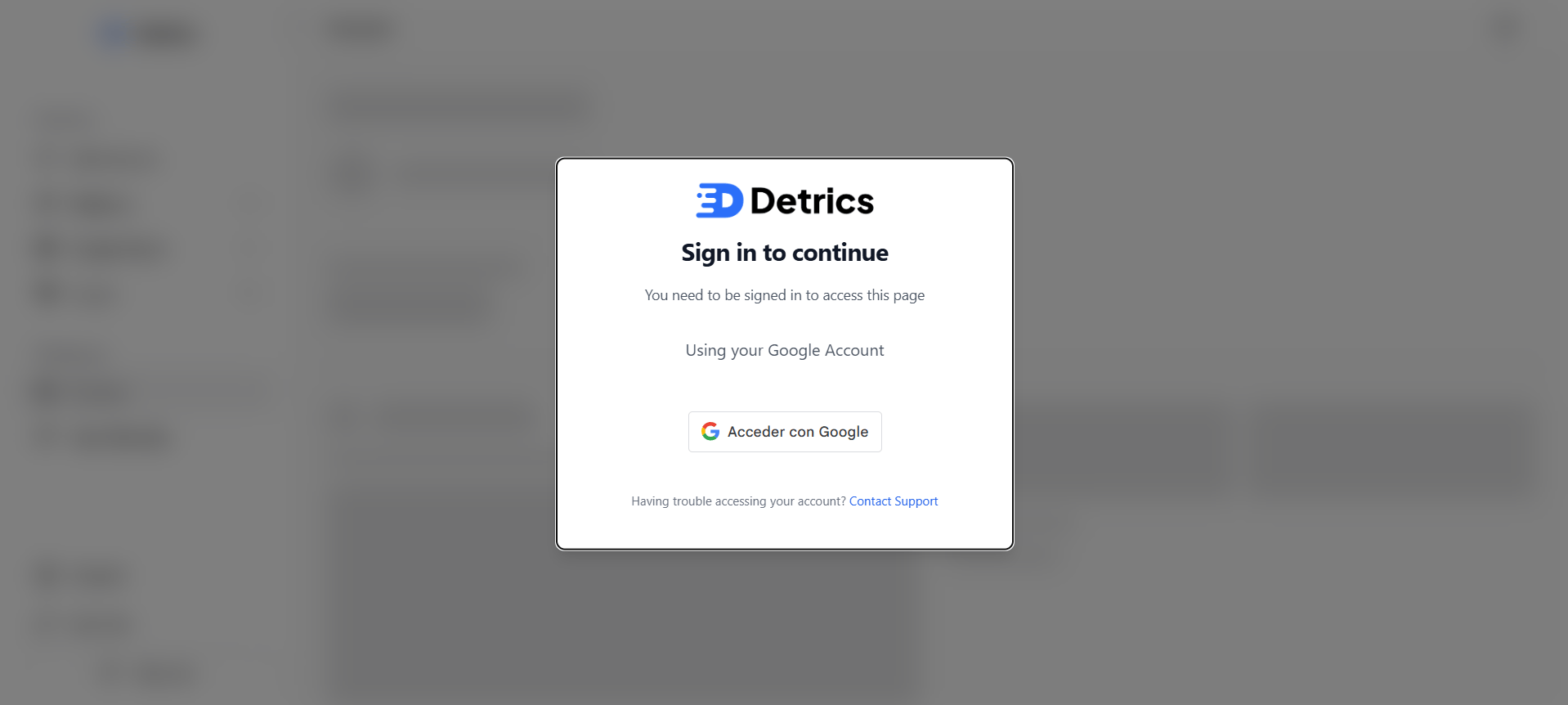
2
Open Data Sources
Once you are signed in, click Data Sources in the left sidebar. This page lists every platform you can connect to Detrics.
3
Select HubSpot
Find HubSpot in the list of available data sources and click on it. This opens the HubSpot connection page inside Detrics.
4
Click Connect
Click the Connect button. Detrics redirects you to HubSpot’s official OAuth authorization page.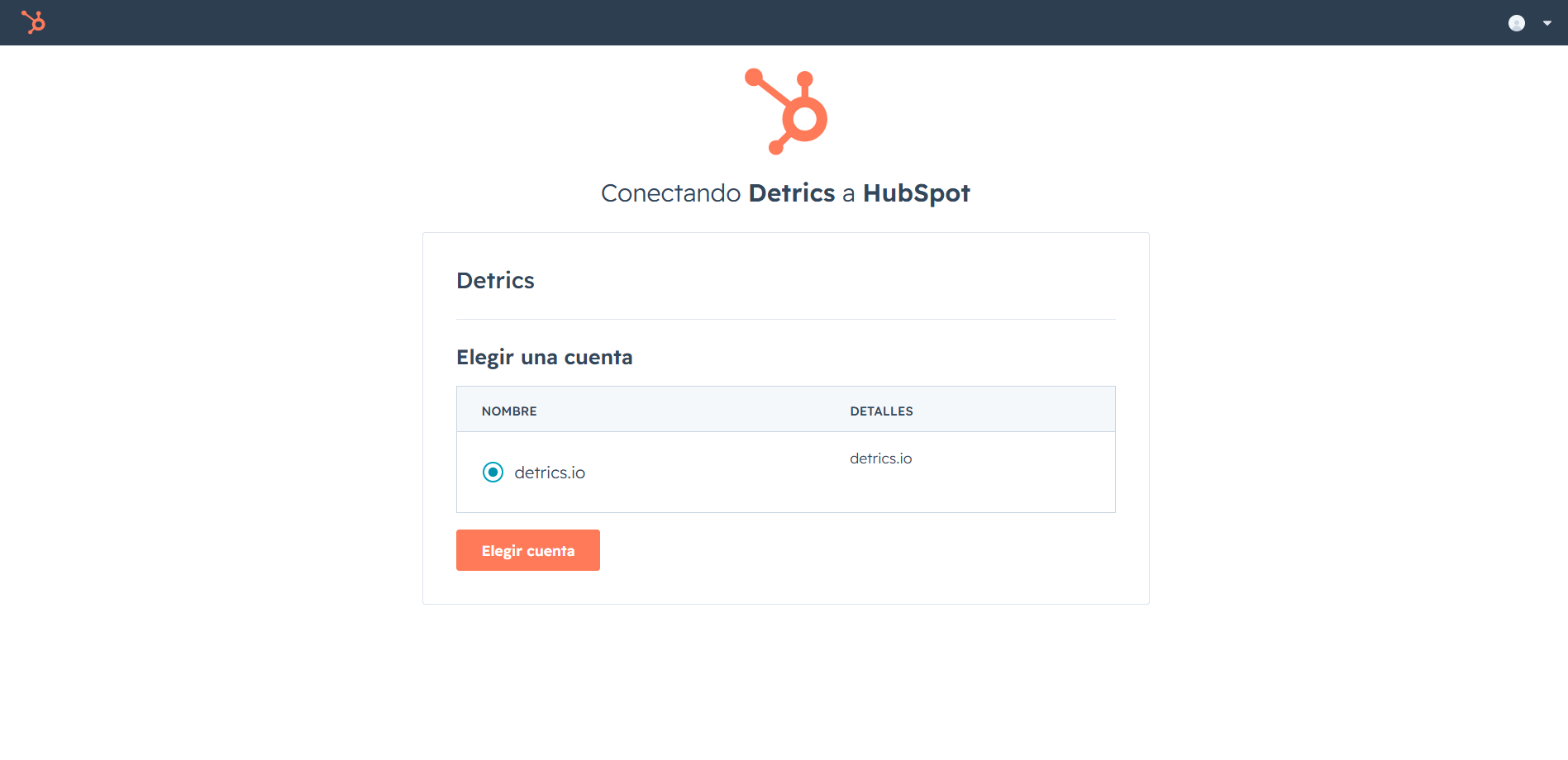
5
Authorize the requested permissions
Review the permissions Detrics is requesting and click Connect app on
HubSpot’s screen. See Permissions Detrics
requests below for a full breakdown of every
scope and why we need it. All access is read-only. Detrics cannot modify
your HubSpot records, send emails, or take any action on your behalf.
6
You're connected
HubSpot redirects you back to Detrics. Your HubSpot portal now appears in your connected data sources, and you can immediately start querying it from any destination (Sheets, Looker Studio, Claude, or BigQuery).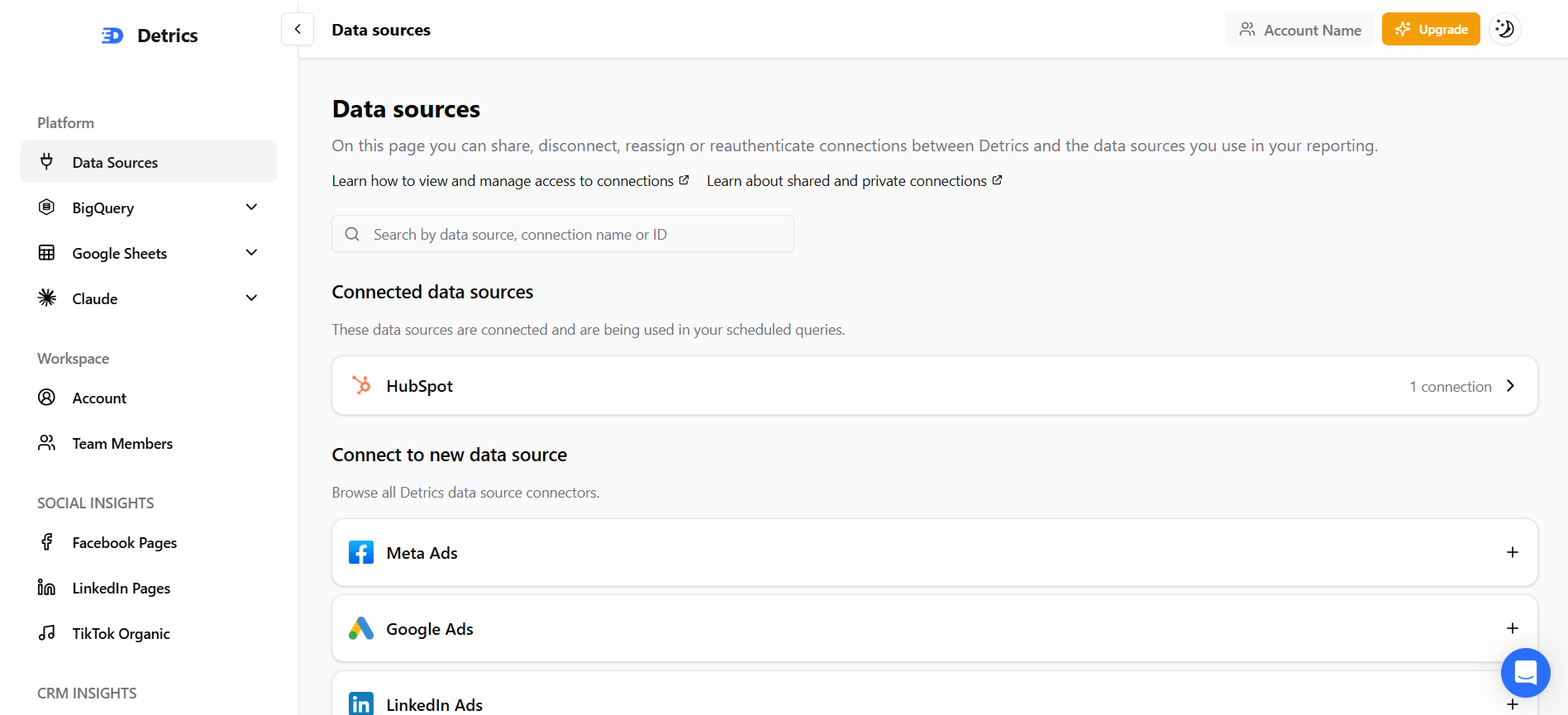
Permissions Detrics requests
Detrics asks for the minimum HubSpot scopes needed to retrieve the data exposed in the HubSpot Metrics & Dimensions reference. All scopes are read-only. Detrics never requests write, delete, or send permissions.Required scopes
These scopes are requested on every install. They cover the core CRM objects every Detrics HubSpot query depends on.Optional scopes
Detrics also requests the following optional scopes. HubSpot silently drops any optional scope your portal does not support (for example, if your plan does not include marketing tools), so requesting them does not block install on lower-tier HubSpot plans.
If your HubSpot plan does not include one of the optional data types above, the corresponding fields will simply not return data, and the rest of the integration is unaffected.
Using your HubSpot data after connecting
Once your HubSpot portal is connected, you can query the same data from any Detrics destination:Google Sheets
Pull HubSpot data into a spreadsheet, build reports, and schedule automatic refreshes.
Looker Studio
Power Looker Studio dashboards with live HubSpot CRM and marketing data.
Claude
Ask natural-language questions about your HubSpot data using the Detrics MCP
connector.
BigQuery
Sync HubSpot objects to BigQuery on a schedule for SQL access and downstream pipelines.
Pricing
Detrics is free to start and offers paid plans for teams with higher query volumes and more destinations. The Detrics HubSpot Integration works on every Detrics plan and is included in your standard Detrics subscription, with no separate add-on cost. See the Detrics pricing page for current plans and limits.Data handling and security
- Read-only access. Detrics requests read-only scopes from HubSpot and cannot modify, delete, or send anything from your HubSpot portal.
- Encryption. Access and refresh tokens are encrypted at rest in the Detrics database, and all traffic between Detrics and HubSpot uses HTTPS.
- Token lifecycle. HubSpot access tokens expire every 30 minutes. Detrics refreshes them automatically using the refresh token issued at install. Refresh tokens are revoked the moment you disconnect (see below).
- Data retention. Detrics caches recent query results to speed up repeated requests and to power scheduled refreshes. Cached data is associated with your Detrics workspace and is not shared with any third party.
Uninstalling and disconnecting
You can disconnect the Detrics HubSpot Integration at any time from either side:From inside Detrics
- Sign in to app.detrics.io.
- Open Data Sources in the left sidebar.
- Click your HubSpot connection and select Disconnect.
From inside HubSpot
- In HubSpot, click the Settings gear in the top navigation.
- Go to Integrations → Connected Apps.
- Find Detrics, open its menu, and click Uninstall.
Requesting deletion of cached data
Disconnecting revokes the tokens and stops new syncs, but cached query results may remain in Detrics until they expire. To request immediate deletion of all cached HubSpot data associated with your workspace, email [email protected] with the subject line “HubSpot data deletion request” and the Detrics workspace name.Support
If you run into any issue installing or using the Detrics HubSpot Integration:- Email us at [email protected].
- Visit support.detrics.io for help articles and to open a ticket.
- For general connection problems, see Troubleshooting Connections.