Connect Detrics to Looker Studio and create your first report
Last updated: March 21, 2026
This visual walkthrough shows you how to connect Detrics to Looker Studio and build your first dashboard, step by step. By the end, you will have a working report pulling live marketing data.
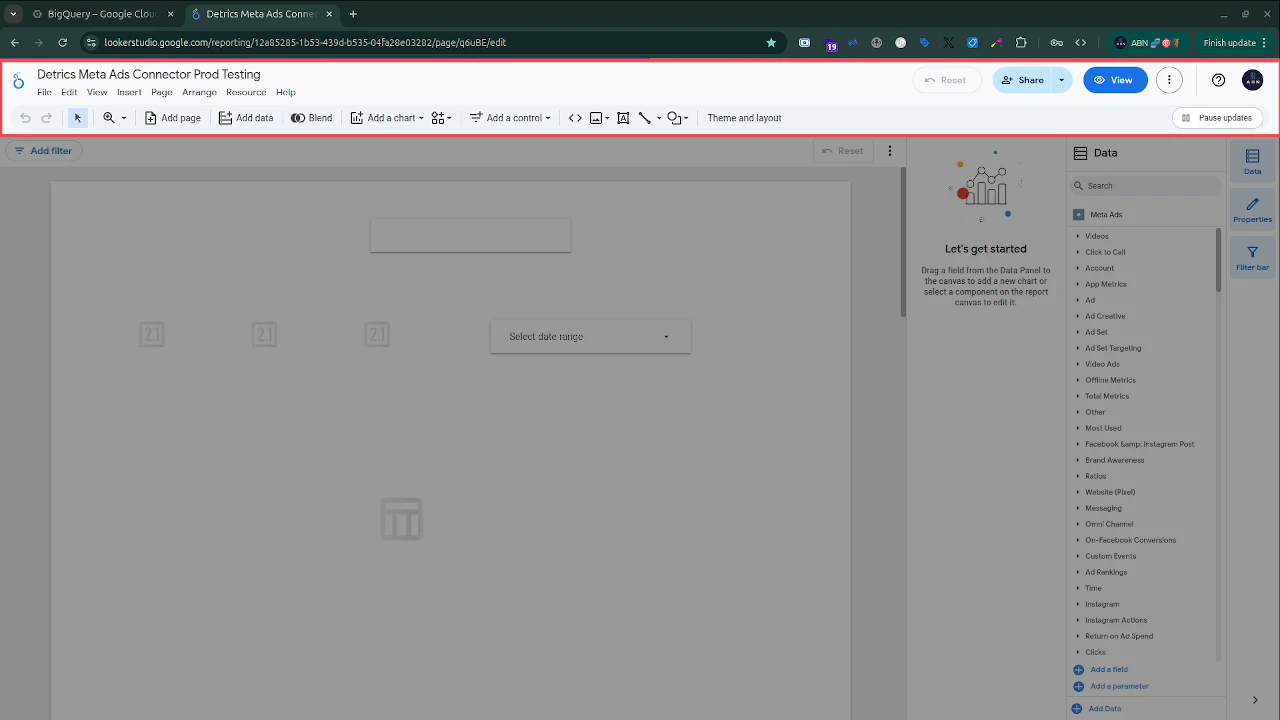
Go to lookerstudio.google.com and click Blank Report to start a new report, or open an existing one.You will land in Edit mode with the toolbar across the top.
Looker Studio edit mode with the main toolbar
2
Add Detrics as a data source
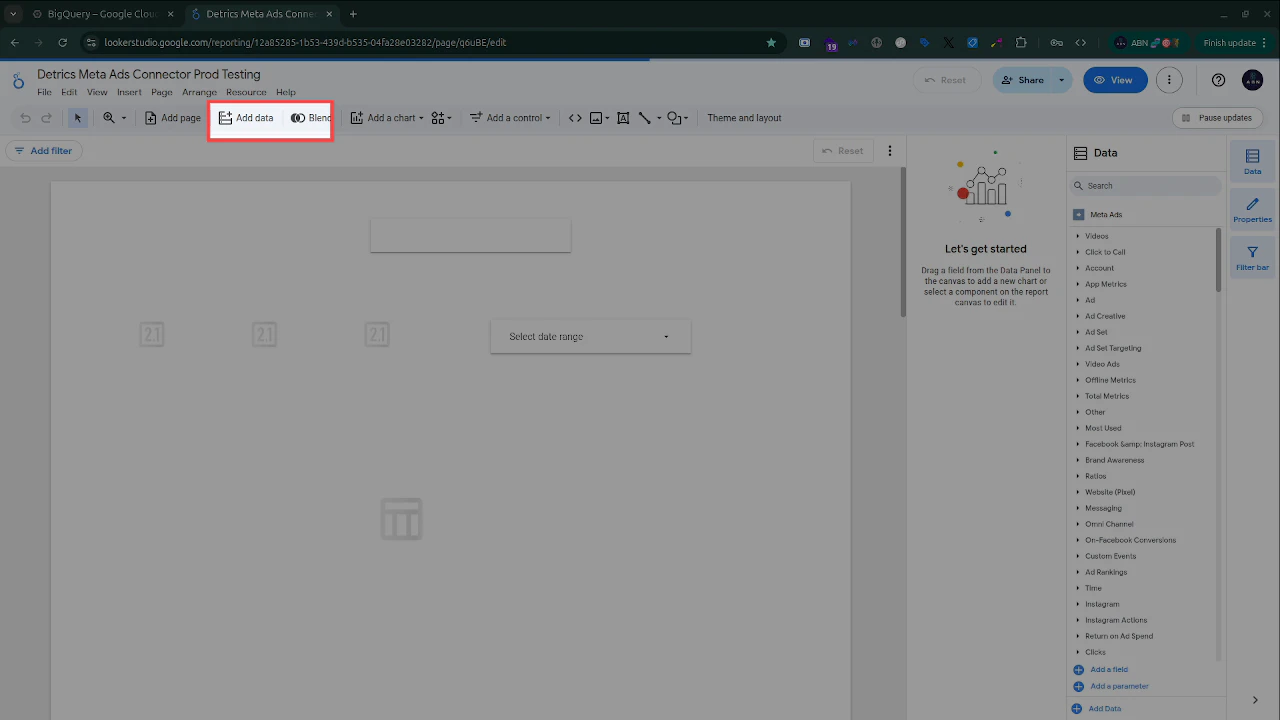
Click Add data in the toolbar. In the connector search dialog, type Detrics and select the connector for your platform (e.g., “Detrics Meta Ads Connector”).Authorize the connection when prompted, then select the ad account you want to pull data from.
The 'Add data' button in the toolbar
First time connecting? See the detailed Add the Detrics Connector guide for the full authorization flow with screenshots.
3
Browse available fields in the Data panel
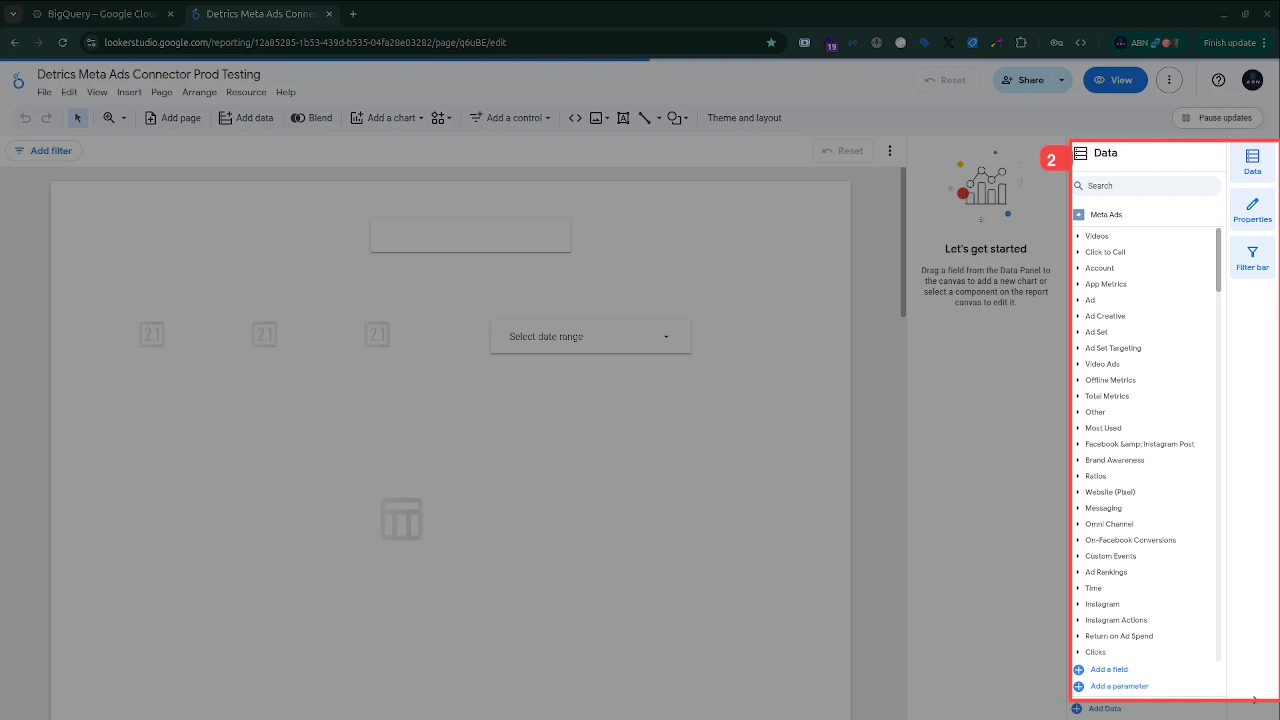
Once connected, the Data panel on the right shows all available fields organized into categories. For Meta Ads, you will see groups like Account, Ad, Ad Set, Ad Creative, Videos, Clicks, Total Metrics, and many more.Expand any category to see individual fields. In Looker Studio, dimensions are attributes you group by (like Campaign Name or Date) and metrics are numeric values you measure (like Cost or Impressions).
Data panel showing Meta Ads field categories
4
Add a chart to your report
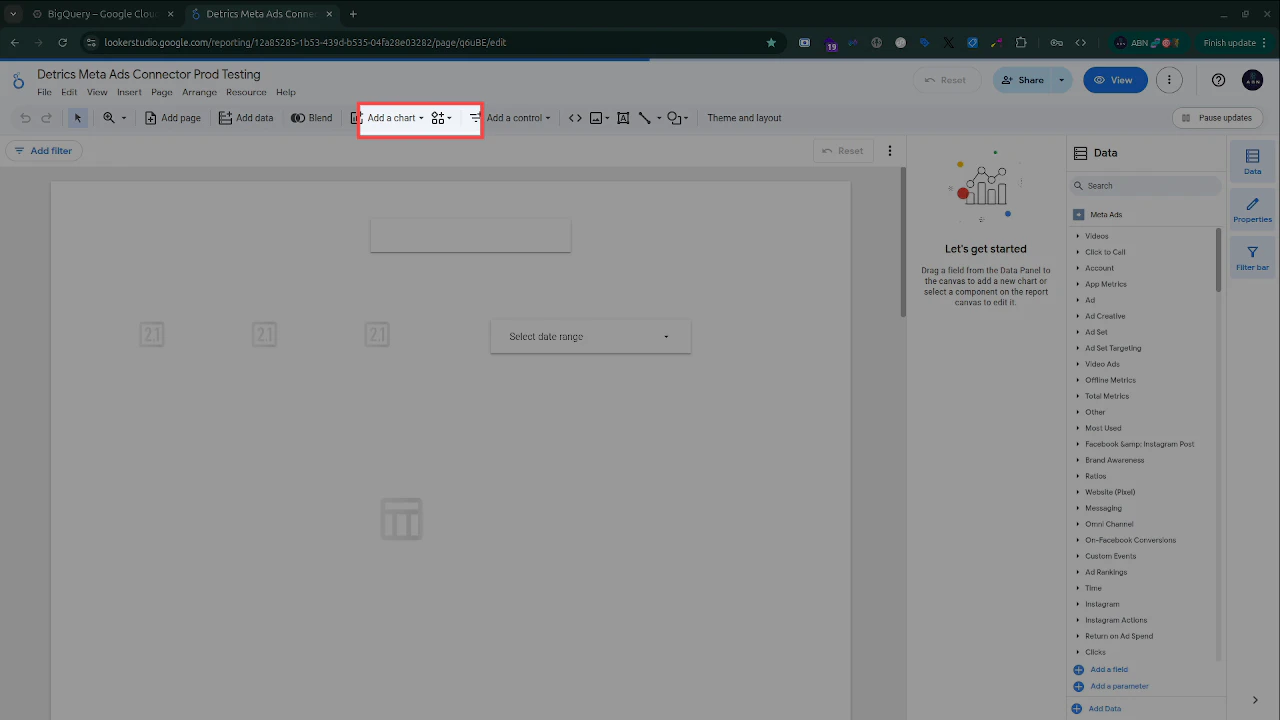
Click Add a chart in the toolbar and choose a chart type (Table, Time series, Bar chart, Scorecard, etc.). The chart will appear on the canvas.You can also drag a field directly from the Data panel onto the canvas to auto-create a chart.
The 'Add a chart' button with chart type options
5
View your data in a table
After adding a table chart, click it to select it. In the properties panel, drag fields from the Data panel into the Dimension and Metric slots (or use the “Add dimension” / “Add metric” buttons). Your table will populate with live data.Here you can see campaign names, dates, and cost data pulled directly from Meta Ads.
6
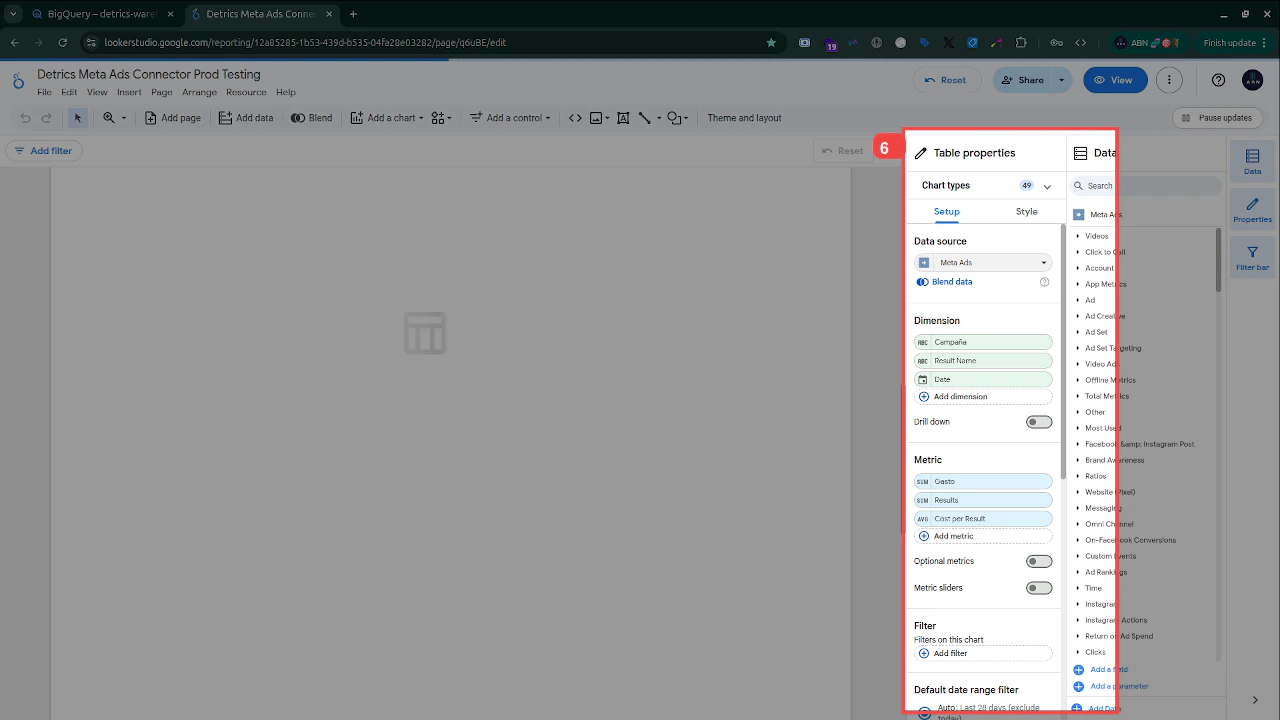
Configure chart properties
Click any chart to open its Table properties panel. Here you can:
Change the Data source (e.g., Meta Ads)
Add or remove Dimensions (like Campaign Name, Date, Result Name)
Add or remove Metrics (like Cost, Results, Cost per Result)
Set Filters and Default date range
Table properties panel showing dimensions, metrics, and configuration options
7
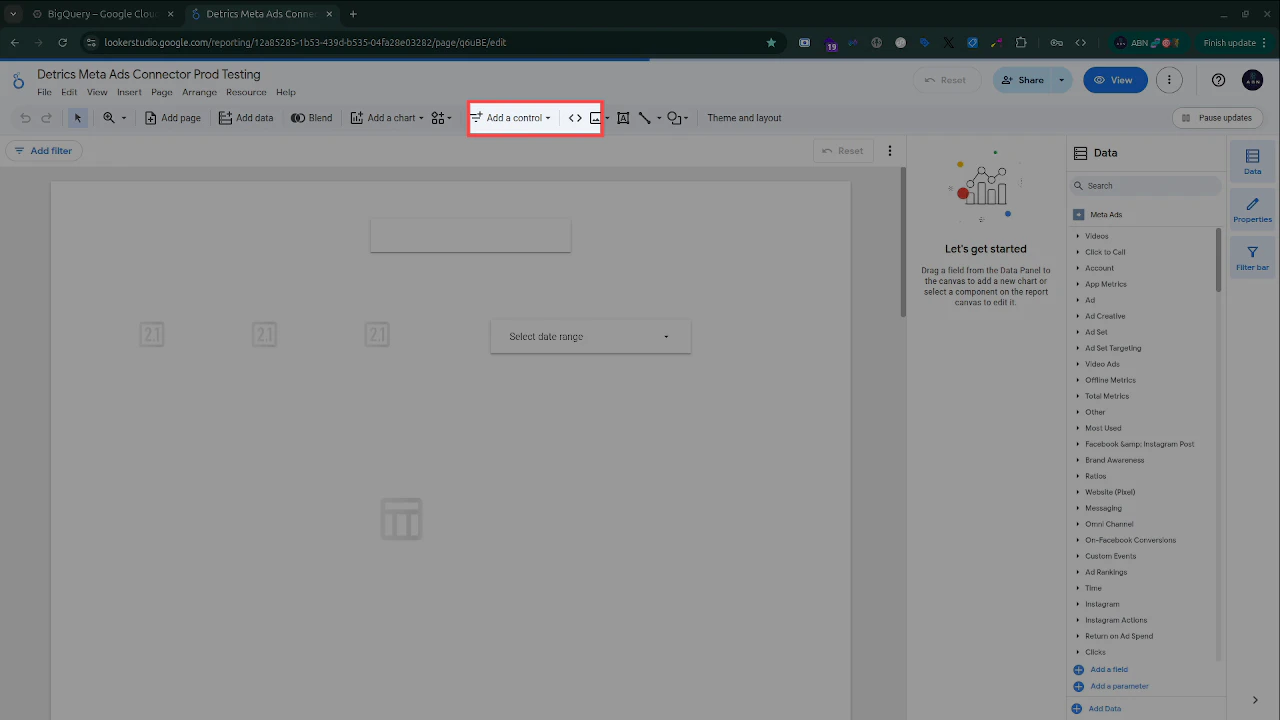
Add a date range control
Click Add a control in the toolbar and select Date range control. Place it on your report canvas. This lets viewers filter all charts by a custom date range.
The 'Add a control' button in the toolbar
Once placed, you will see a date range dropdown on your report canvas where users can select their desired date range.
8
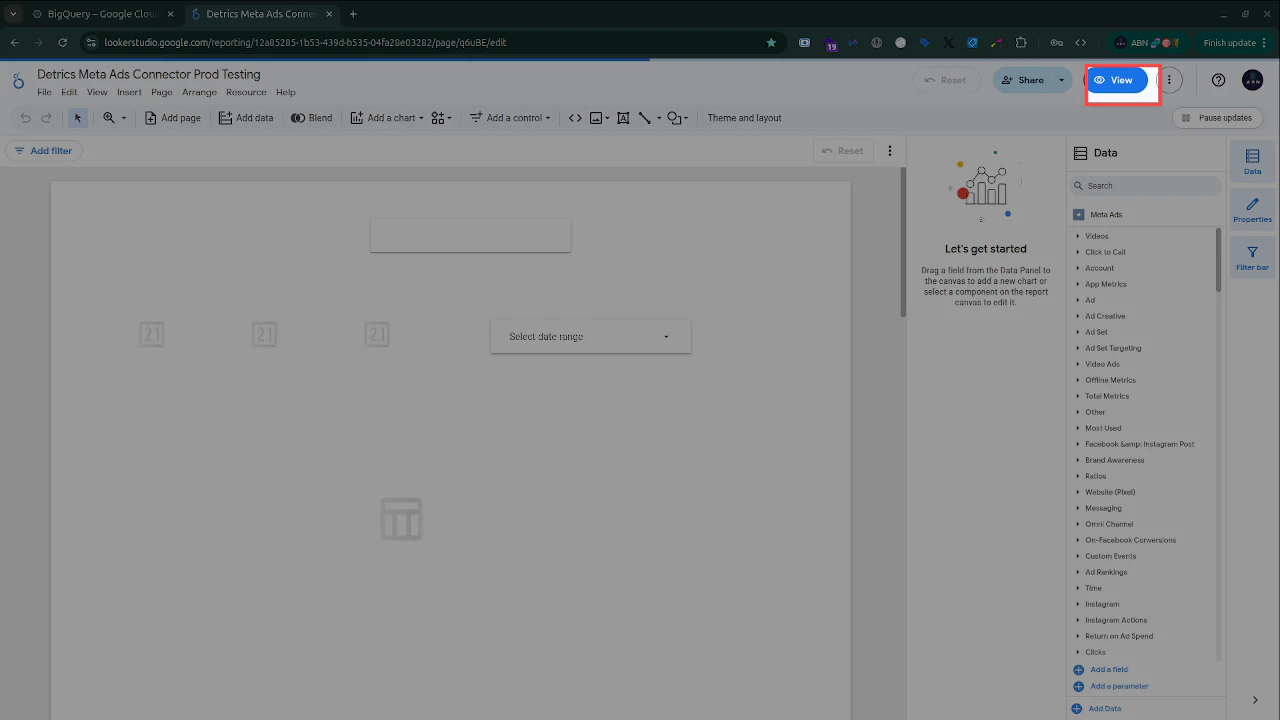
Switch to View mode
Click the View button (blue button in the top-right corner) to exit edit mode and see your finished report as viewers will see it. Your dashboard is now pulling live data from Detrics.
The View button in the top-right corner
Your 14-day free trial starts once your first table loads data in Looker Studio.
Looker Studio has a 6-minute execution limit per data source query. If your report times out, reduce the date range or number of fields. See the 6-minute limit guide for details.