Go to detrics.io/looker-studio/integrations and browse the available connectors.You will see connectors for Meta Ads, Google Ads, TikTok Ads, LinkedIn Ads, Google Analytics 4, Shopify, and more.
2
Click your desired connector
Click on the platform you want to connect. For example, click Meta Ads to add Facebook/Instagram advertising data.This will redirect you to Looker Studio’s connector authorization page.
3
Authorize your Detrics account
You will see two authorization steps:
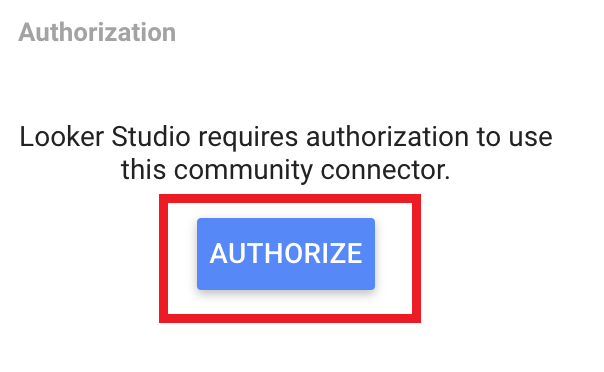
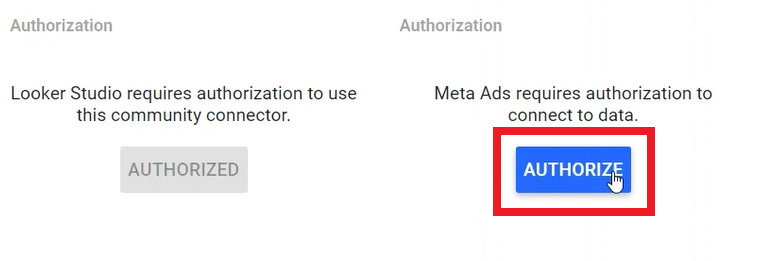
Click the Authorize button on the left side to sign in with your Google account
Click the Authorize button on the right side to connect your ad platform
The Detrics authorization buttons in Looker Studio
Platform authorization on the right side
4
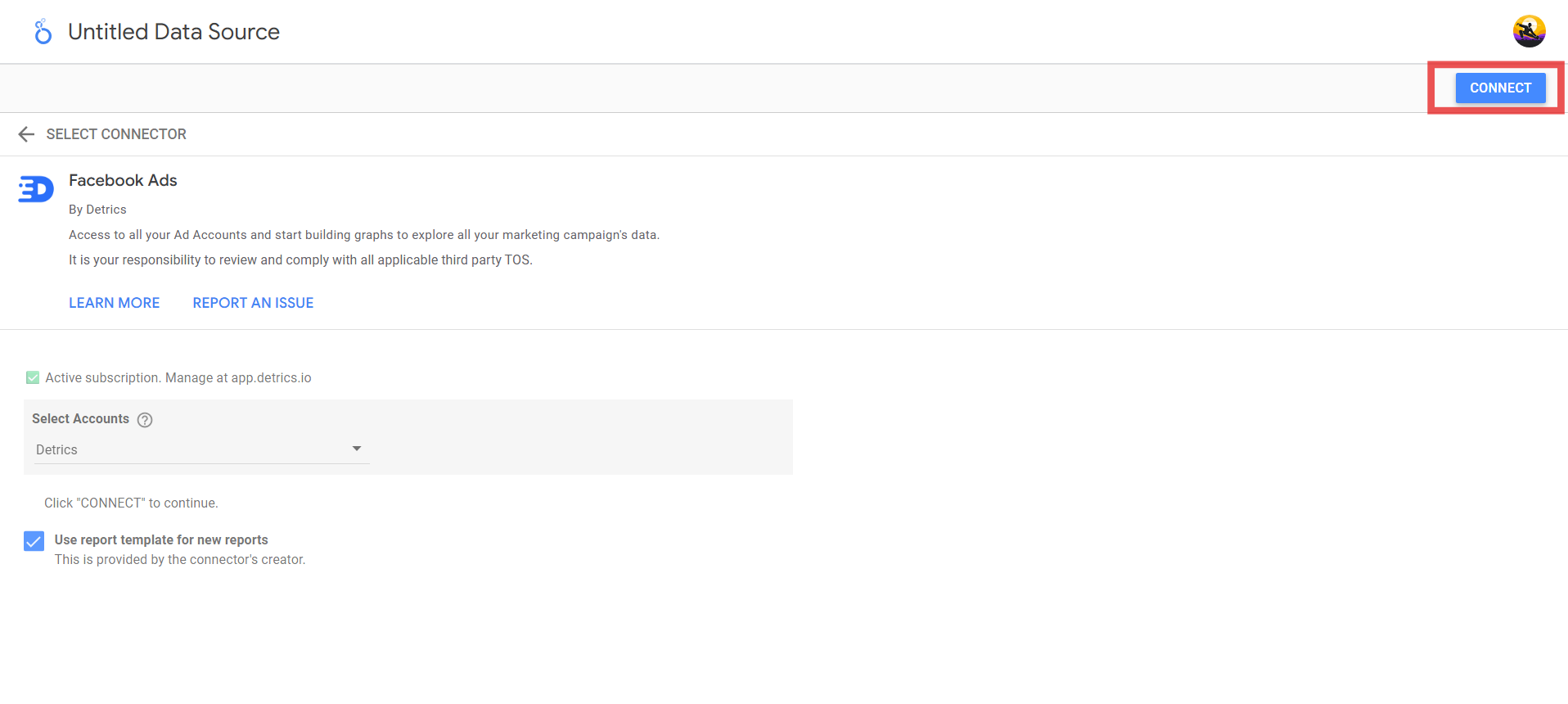
Select your ad account
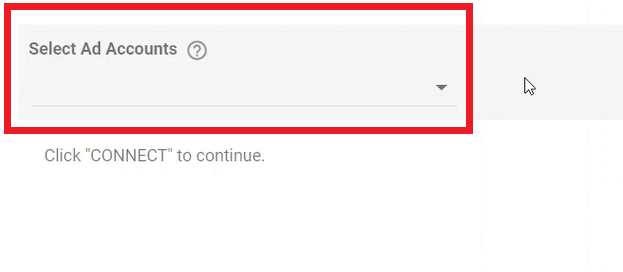
Choose the specific account you want to pull data from. For Meta Ads, you will see a dropdown listing all your ad accounts.
Account selection dropdown
5
Choose a template (optional)
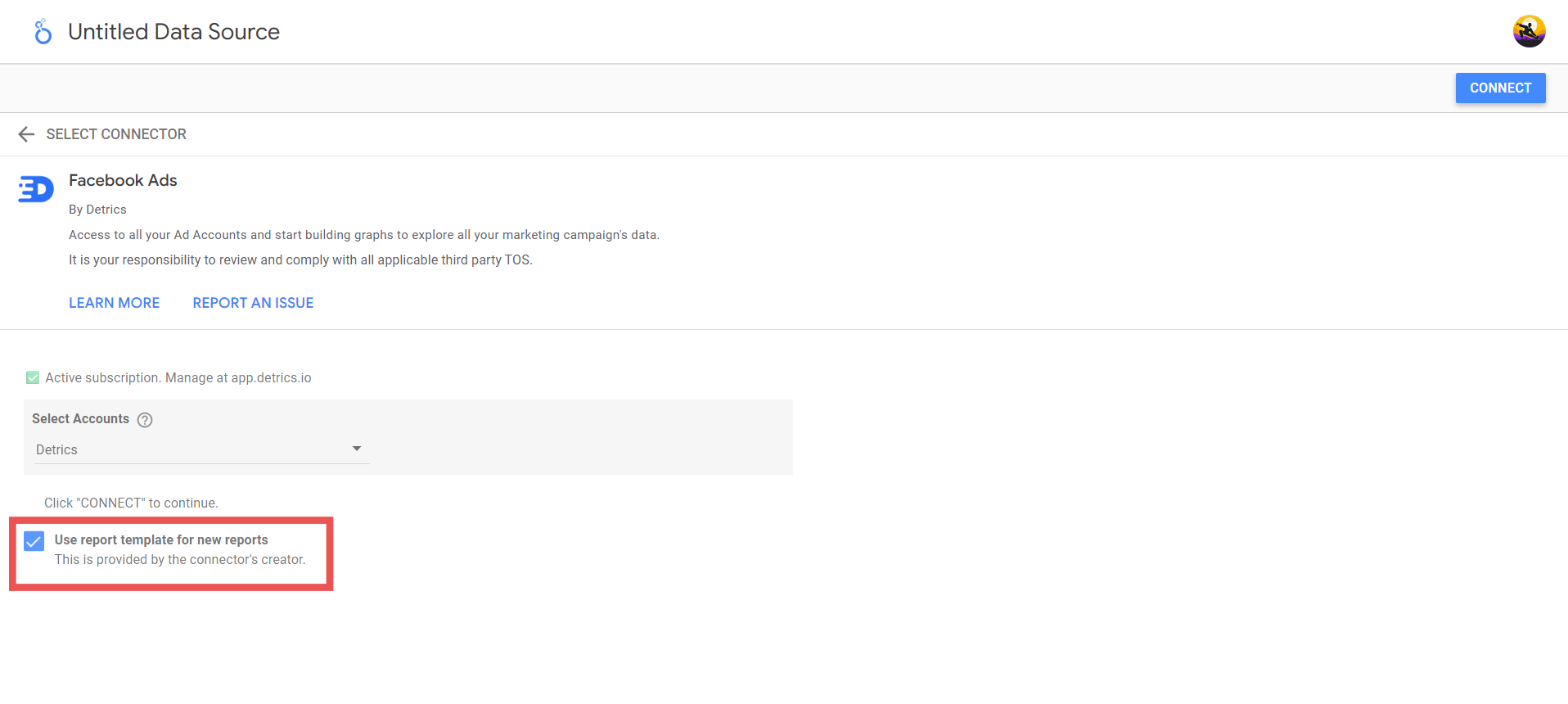
Some connectors offer pre-built templates with common charts and layouts already configured. Keep the checkbox checked to start with a template, or uncheck it to start from a blank report.
Template opt-in checkbox
Templates are a great starting point. You can always customize or remove any element after the report is created.
6
Connect the data source
Click the Connect button in the top-right corner of the screen to finalize the connection.
Connect button to establish the data source connection
7
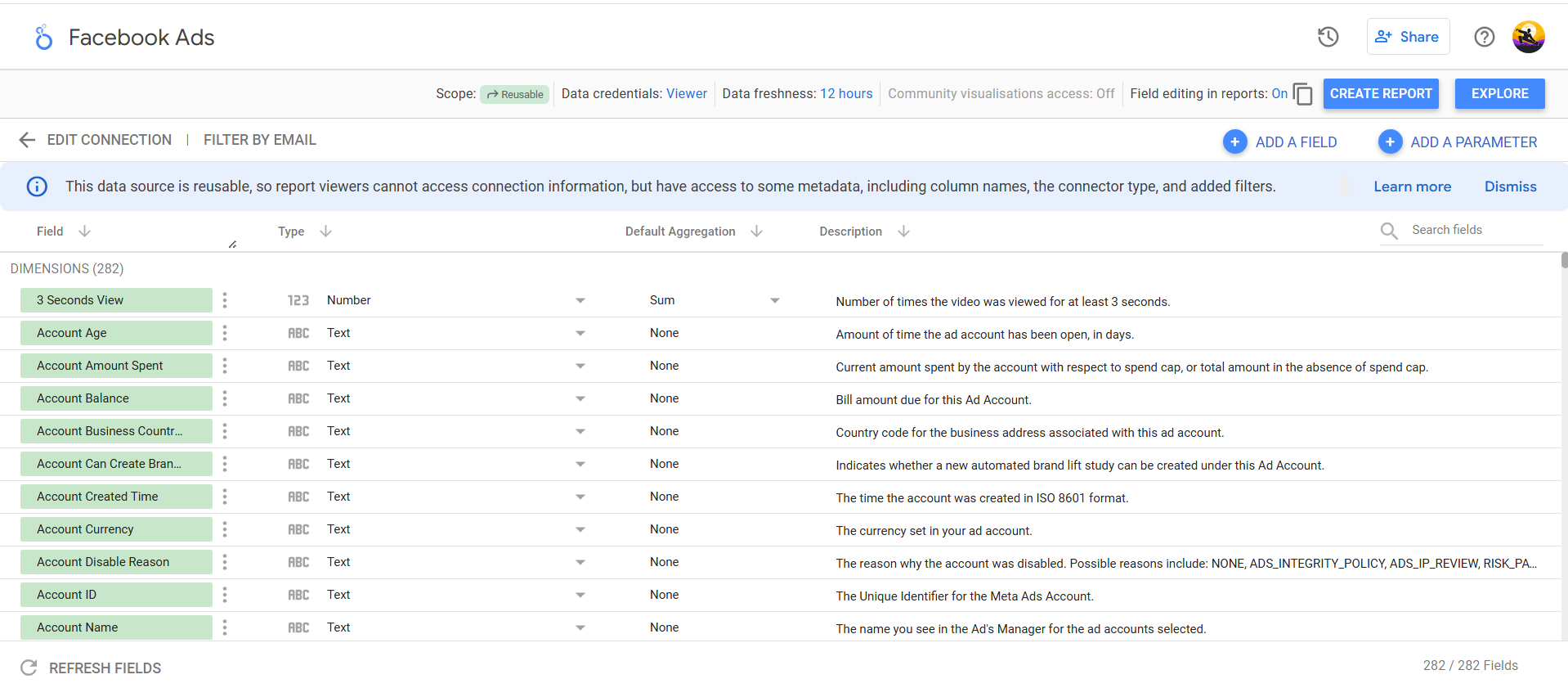
Review and format fields
Before creating the report, you can review the available fields. A common adjustment is changing the “Ad Image” field type from Text to Image URL so your report can display ad creative previews.
Field configuration screen showing dimensions and their types
8
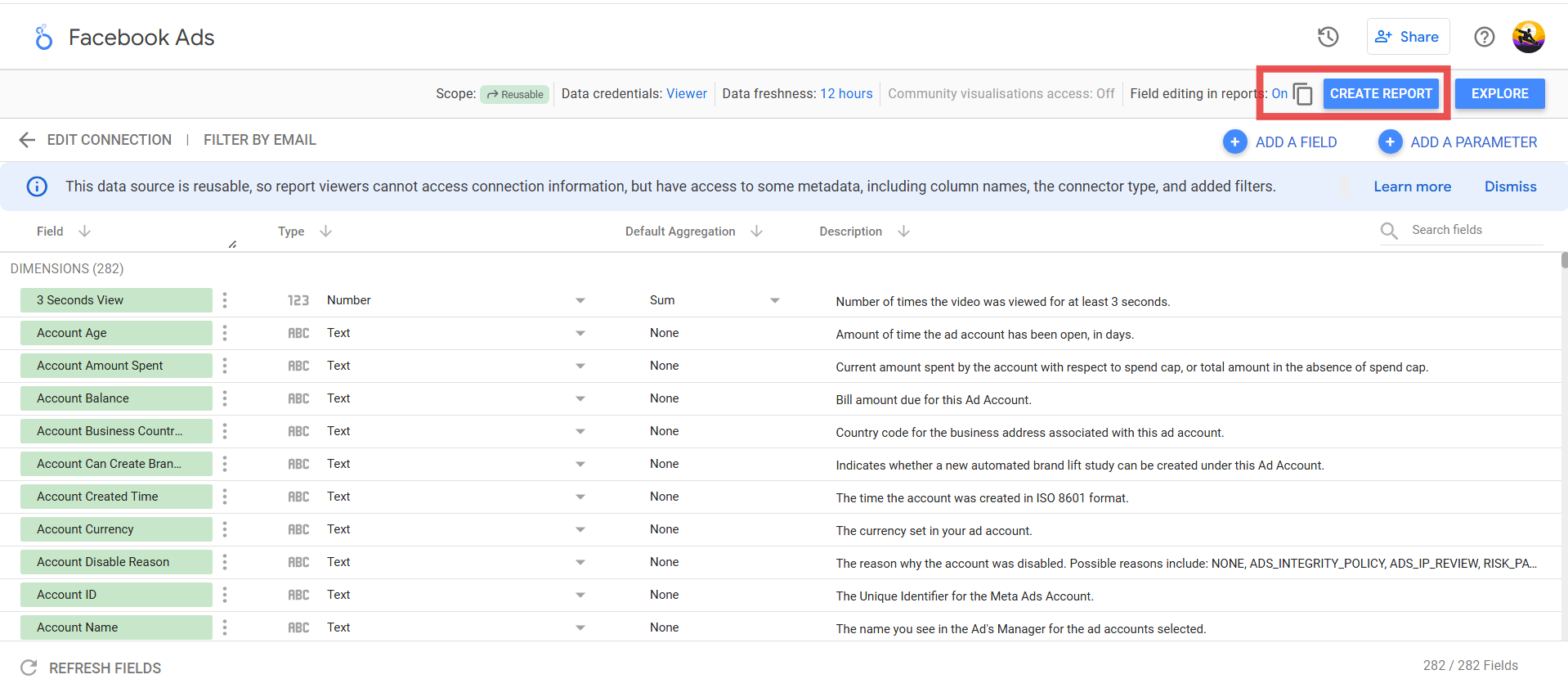
Create the report
Click Create Report (or Add to Report if adding to an existing report). Your data source is now connected and ready to use.
If you already have a report open in edit mode, you can add Detrics as an additional data source.
1
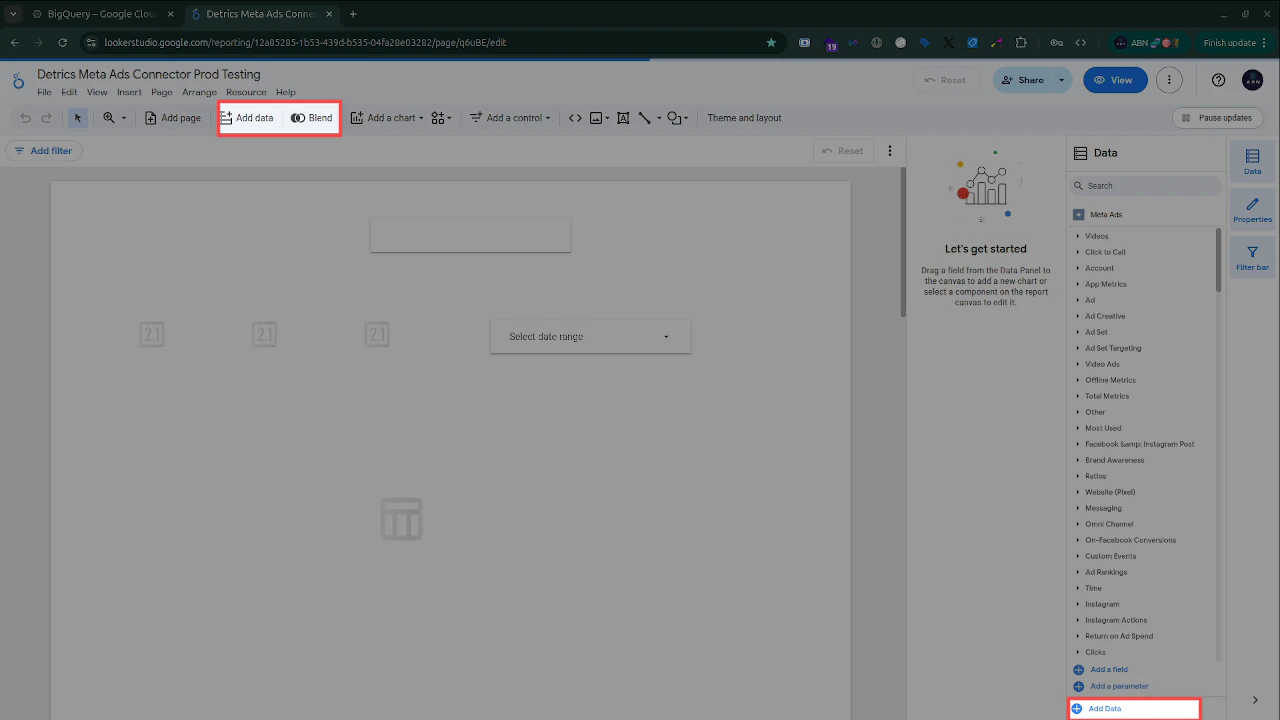
Click 'Add Data' in the toolbar or panel
In edit mode, click Add data in the toolbar at the top of the screen, or click the Add Data link at the bottom of the Data panel on the right side.
Add Data button at the bottom of the Data panel
2
Search for Detrics
In the connector search dialog, type Detrics. You will see all available Detrics connectors listed. Select the one matching your platform.
3
Authorize and select account
Follow the same authorization flow as Option 1 above (Steps 3-4). You will authorize your Google account, then your platform account, and select the specific ad account.
4
Confirm the connection
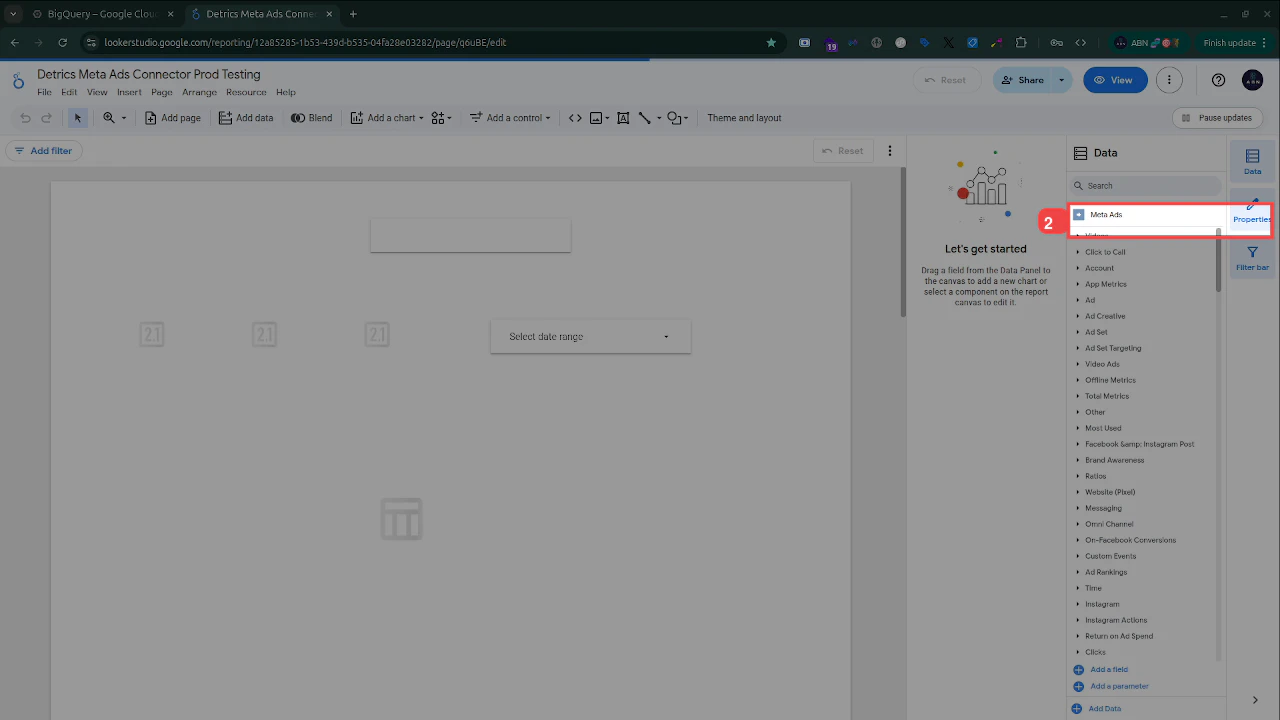
Once connected, you will see the data source appear in the Data panel on the right, showing the platform name (e.g., “Meta Ads”) and all available field categories.
Data panel showing the connected Meta Ads data source with field categories
Once your connector is set up and you have added charts, your report will display live data from your ad platform. Here is an example report with two data tables pulling campaign performance data from Meta Ads:
Make sure you are searching for Detrics (not “Dataplug”). If it still does not appear, try using the direct link from the Detrics website instead.
Authorization fails or loops
Clear your browser cookies for lookerstudio.google.com and try again. Make sure you are using the same Google account that has your Detrics workspace. If the issue persists, try in an incognito window.
I don't see any ad accounts in the dropdown
Verify that your platform connection is active in your Detrics workspace. If the connection has expired, re-authorize it in the Detrics web app first, then retry in Looker Studio.
Data is not loading after connecting
Check the 6-minute timeout guide. Looker Studio has a strict execution time limit. Try reducing your date range or the number of fields in your query.
Each Looker Studio connector instance is tied to a single ad account. To pull data from multiple accounts, add the connector once per account using Add data.