

From the Web App
1
Go to Data Sources
Log in to app.detrics.io and click Data Sources in the left sidebar.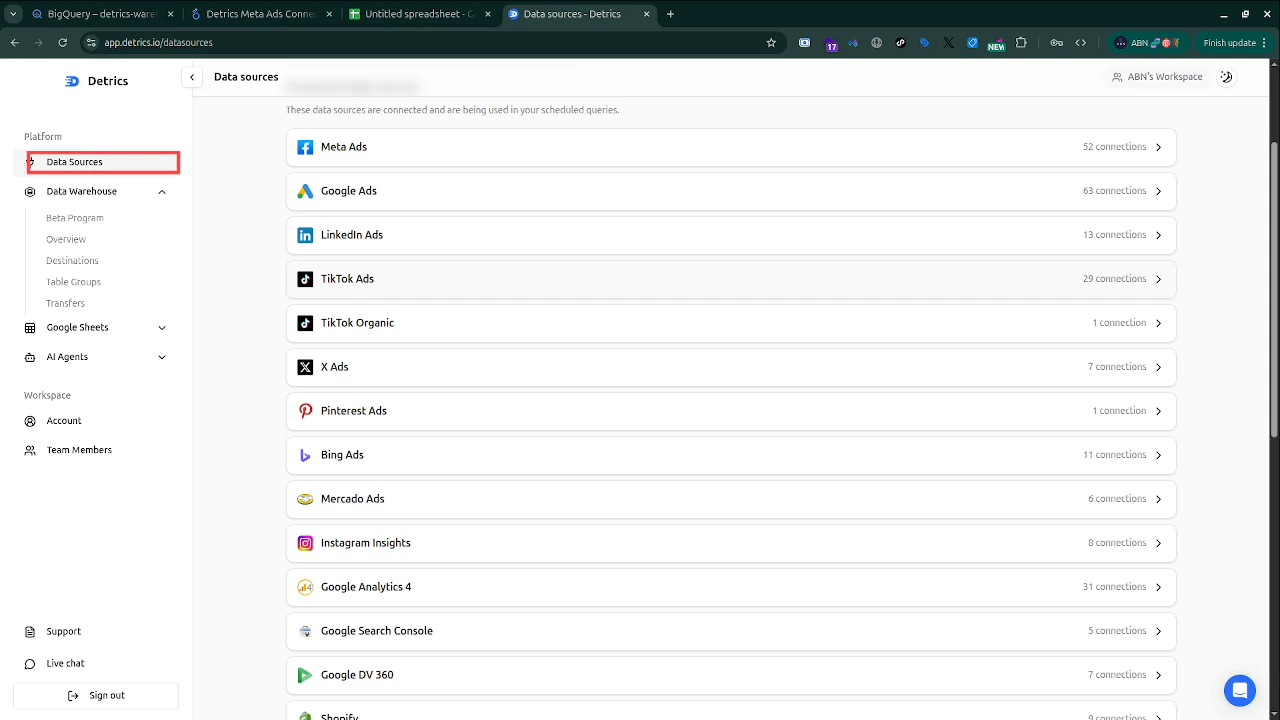
2
Select a Platform
Click on the platform you want to connect (e.g., Meta Ads, Google Ads, Shopify). This opens the platform’s connection page.
3
Authorize Access
Click the Connect button. You will be redirected to the platform’s official OAuth authorization page. Sign in with the account that has access to the data you need, and grant Detrics read-only permission.
4
Select Accounts
After authorizing, Detrics loads your available accounts. Select the ones you want to work with. You can always add more accounts later.
5
Start Querying
Your connection is ready. You can now use it in Google Sheets, Looker Studio, Claude, or the Data Warehouse.
From Google Sheets
If you are working in Google Sheets, you can connect platforms directly from the Detrics sidebar.1
Open the Sidebar
Go to Extensions > Detrics > Launch Detrics in your Google Sheet.
2
Click Connect Data Source
In the sidebar, click Connect Data Source and choose the platform you want to add.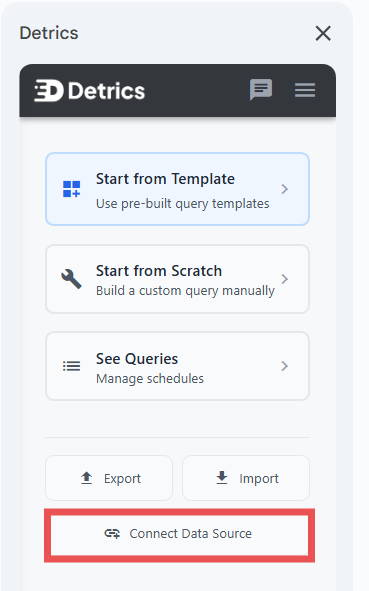
3
Choose Your Platform
Select the data source from the list of available platforms.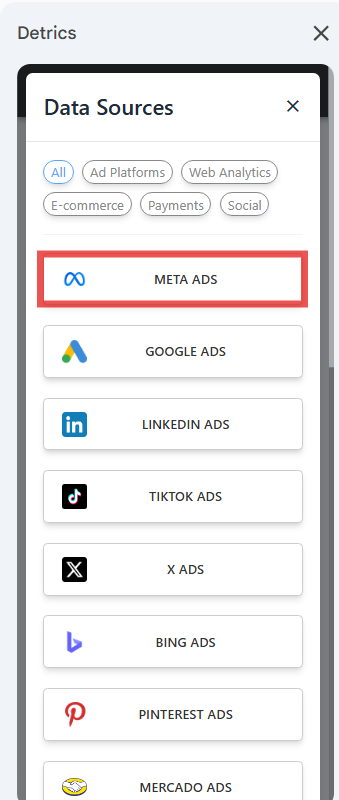
4
Authorize and Select Accounts
Complete the OAuth flow and select the accounts you want to use. The connection is now available in your workspace.
From Looker Studio
For Looker Studio, connections are created during the connector setup process. See the Looker Studio Quickstart for the full walkthrough.Platform-Specific Notes
Some platforms have special requirements:- Meta Ads / Facebook: You need admin or analyst access to the ad account. If you manage multiple Business Managers, make sure you authorize with the right Facebook account.
- Google Ads: Requires a Google account with access to the Google Ads MCC or individual accounts.
- Shopify: Uses a store-level connection. You need store owner or staff access.
- Stripe / TiendaNube: These use centralized tokens. One connection per account is shared across all workspaces.