

What are AI Contexts?
An AI Context is a saved configuration that tells Claude which platforms and accounts to use by default. Instead of specifying account IDs in every prompt, you create a Context once and reference it by name. Without an AI Context:Create a Context
Go to AI Contexts
Open app.detrics.io/mcp/contexts, or navigate to AI Agents > AI Contexts in the sidebar.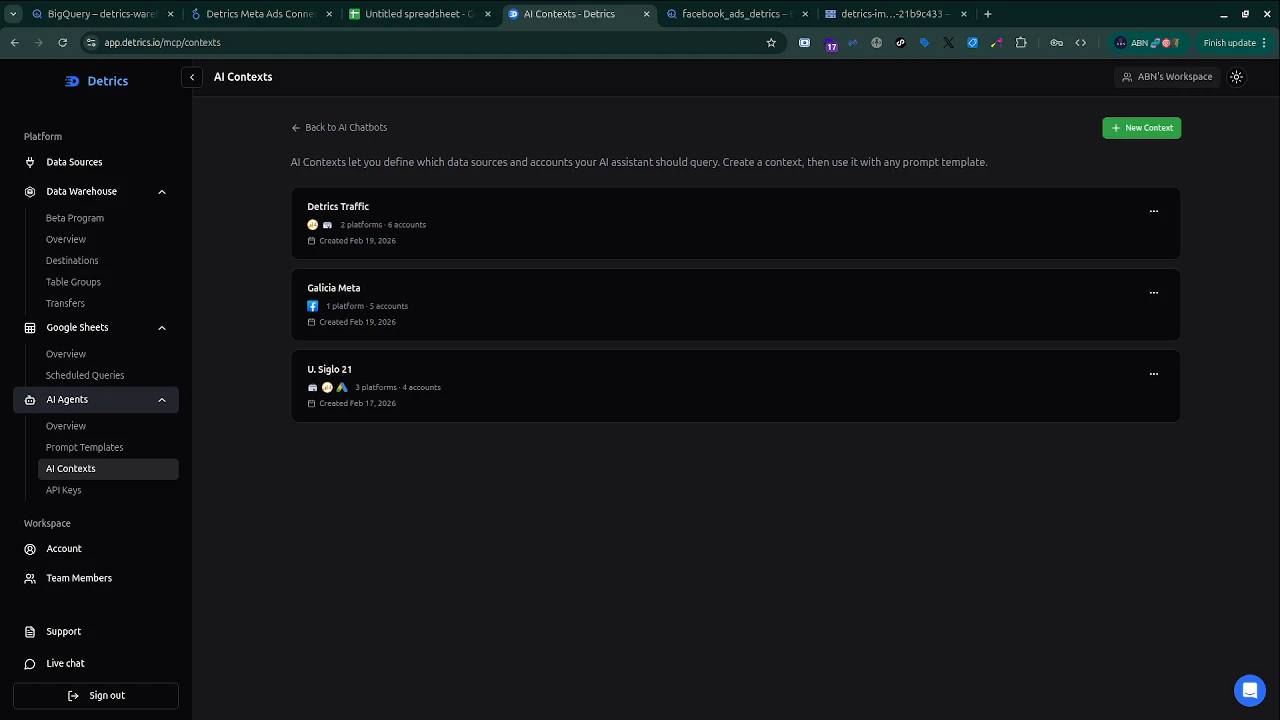
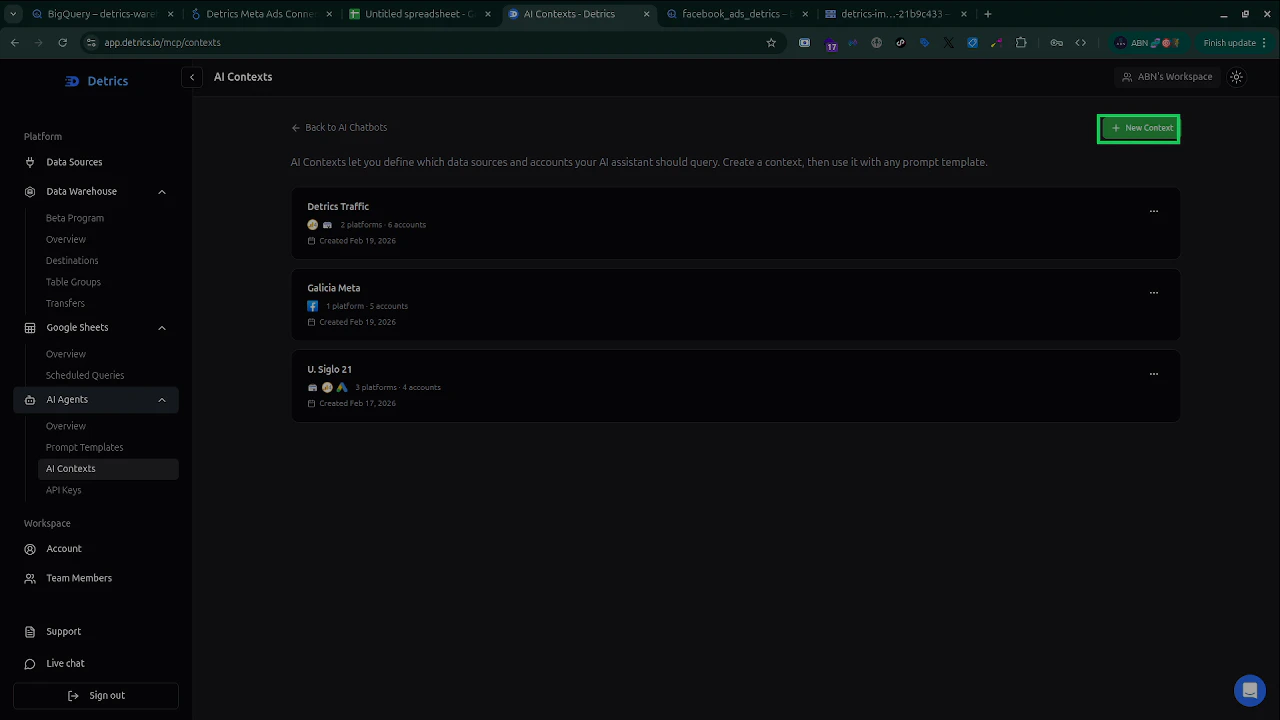
Name your Context
Give it a descriptive name that Claude can understand in natural language.Good names:
- “Weekly performance report”
- “Client A - Meta Ads”
- “All e-commerce accounts”
- “Detrics Traffic”
Select platforms and accounts
Choose which platform connections and accounts this Context should include. You can select multiple platforms and multiple accounts from each platform.You can add additional platforms by clicking + Add data source.
Use Contexts in Claude
Once you have created Contexts, reference them by name in your prompts:Managing Contexts
From app.detrics.io/mcp/contexts you can:- View all Contexts in your workspace
- Edit existing Contexts to update platforms, accounts, or names
- Delete Contexts that are no longer needed
MCP tools for Contexts
Claude uses these MCP tools automatically when working with Contexts:| Tool | What it does |
|---|---|
list_contexts | Lists all Contexts available in your workspace |
get_context | Gets the full details of a specific Context |
query_marketing_data with context_id | Queries data using the Context’s pre-configured settings |