> ## Documentation Index
> Fetch the complete documentation index at: https://support.detrics.io/llms.txt
> Use this file to discover all available pages before exploring further.
# Workspace Overview
> Manage your team, connections, and account settings
**Last updated:** March 21, 2026
Your workspace is where your entire team collaborates on data. It holds your team members, data source connections, scheduled queries, and account settings, all in one place.
***
## How the workspace is organized
A Detrics workspace contains:
* **Team Members**: the people who can log in and use Detrics
* **Connections**: authenticated links to your ad platforms, analytics tools, and e-commerce stores
* **Account settings**: your plan, billing, and workspace preferences
Every team member shares the same workspace. Once someone connects Meta Ads as a shared connection, everyone on the team can build reports from it.
***
## Team Members
The Team Members page shows everyone in your workspace, their email, and their role (Owner or Member).
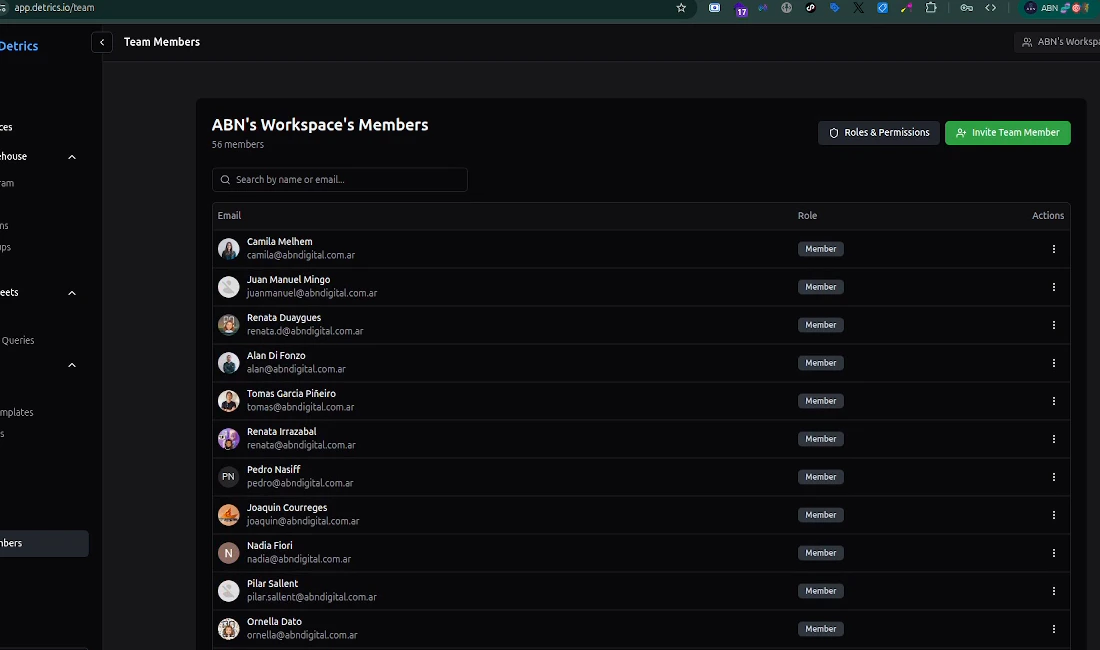 From this page you can:
* **Search** for a member by name or email
* **Invite new members** using the green "Invite Team Member" button
* **View roles & permissions** to understand what each role can do
* **Change a member's role** or remove them via the actions menu
Every workspace must have at least one Owner. Members can connect data sources and run queries, but only Owners can manage billing, invite users, and control team connections.
***
## Data Sources
The Data Sources page is your central hub for all platform connections. Each platform row shows the number of active connections your team has established.
From this page you can:
* **Search** for a member by name or email
* **Invite new members** using the green "Invite Team Member" button
* **View roles & permissions** to understand what each role can do
* **Change a member's role** or remove them via the actions menu
Every workspace must have at least one Owner. Members can connect data sources and run queries, but only Owners can manage billing, invite users, and control team connections.
***
## Data Sources
The Data Sources page is your central hub for all platform connections. Each platform row shows the number of active connections your team has established.
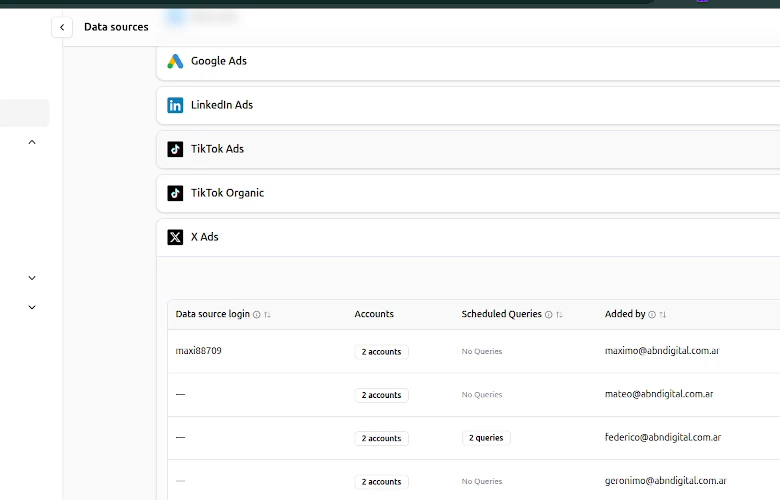
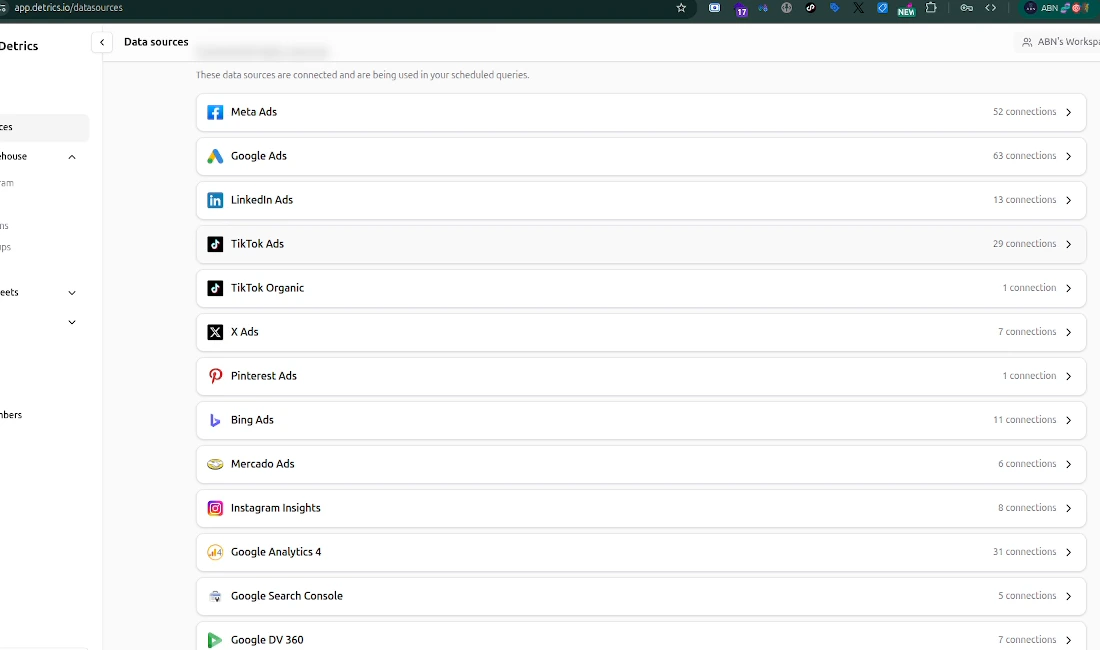 Click any platform row to expand it and see individual connections with details like the login email, account count, scheduled queries, who added the connection, and last activity.
 ***
## Common tasks
In the left sidebar, under **Workspace**, click **Team Members**. Then click the green **Invite Team Member** button in the top right. Enter their email address and they will receive an invitation to join.
In the left sidebar, click **Data Sources** (under the **Platform** section). You will see all connected platforms. Click a platform to expand it and view individual connections, the accounts they can access, and any scheduled queries using them.
New connections are **public by default**, all workspace members can use them. To restrict access, expand a platform, click the three-dot menu on a connection, and select **Manage sharing**. You can make it restricted (specific members only) or keep it public (everyone on the team can use it).
***
## Key concepts
| Concept | What it means |
| ------------------------- | ----------------------------------------------------------------------- |
| **Owner** | Full access to billing, team management, and all connections |
| **Member** | Can connect data sources, run queries, and manage their own connections |
| **Public connection** | Any team member can use this connection in their queries (default) |
| **Restricted connection** | Limited to specific team members chosen by the connection owner |
***
## Next steps
Understand what Owners and Members can do
Reconnect, replace, archive, and share connections
Control who can access each connection
Browse all available metrics and dimensions
**Need help?** Use the chat widget in the bottom-right corner or email [support@detrics.io](mailto:support@detrics.io).
***
## Common tasks
In the left sidebar, under **Workspace**, click **Team Members**. Then click the green **Invite Team Member** button in the top right. Enter their email address and they will receive an invitation to join.
In the left sidebar, click **Data Sources** (under the **Platform** section). You will see all connected platforms. Click a platform to expand it and view individual connections, the accounts they can access, and any scheduled queries using them.
New connections are **public by default**, all workspace members can use them. To restrict access, expand a platform, click the three-dot menu on a connection, and select **Manage sharing**. You can make it restricted (specific members only) or keep it public (everyone on the team can use it).
***
## Key concepts
| Concept | What it means |
| ------------------------- | ----------------------------------------------------------------------- |
| **Owner** | Full access to billing, team management, and all connections |
| **Member** | Can connect data sources, run queries, and manage their own connections |
| **Public connection** | Any team member can use this connection in their queries (default) |
| **Restricted connection** | Limited to specific team members chosen by the connection owner |
***
## Next steps
Understand what Owners and Members can do
Reconnect, replace, archive, and share connections
Control who can access each connection
Browse all available metrics and dimensions
**Need help?** Use the chat widget in the bottom-right corner or email [support@detrics.io](mailto:support@detrics.io).