> ## Documentation Index
> Fetch the complete documentation index at: https://support.detrics.io/llms.txt
> Use this file to discover all available pages before exploring further.
# Google Sheets Quickstart
> Get up and running with Detrics for Google Sheets in minutes
**Last updated:** August 2, 2025
It's great to have you here! Follow the steps provided below to get started with Detrics for Google Sheets in just a few minutes.
## Get Started
Create your **[free Detrics
account](https://detrics.io/get-started?utm_source=detrics-support\&utm_medium=google-sheets-quickstart)**,
no credit card required. You'll receive a personalized onboarding sheet with
generous free usage limits perfect for individuals and small teams.
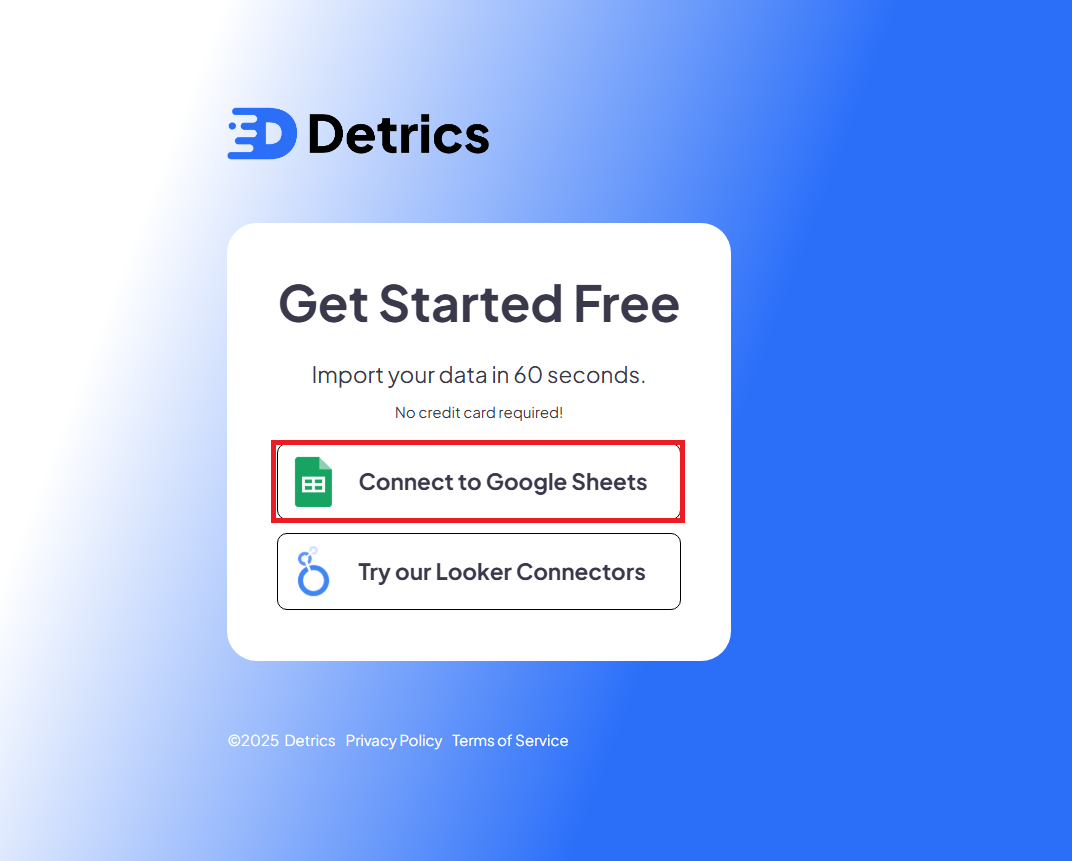 After clicking "Connect to Google Sheets", you'll be prompted to sign in
with your Google account:
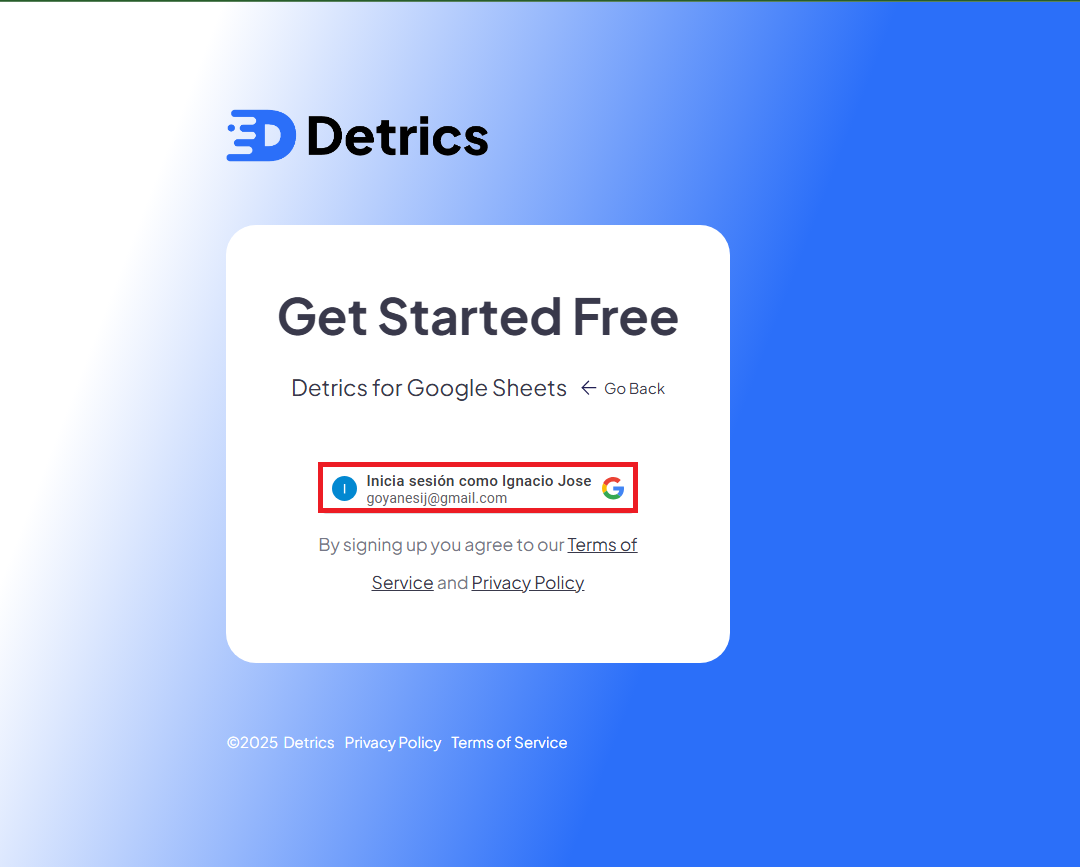
After clicking "Connect to Google Sheets", you'll be prompted to sign in
with your Google account:
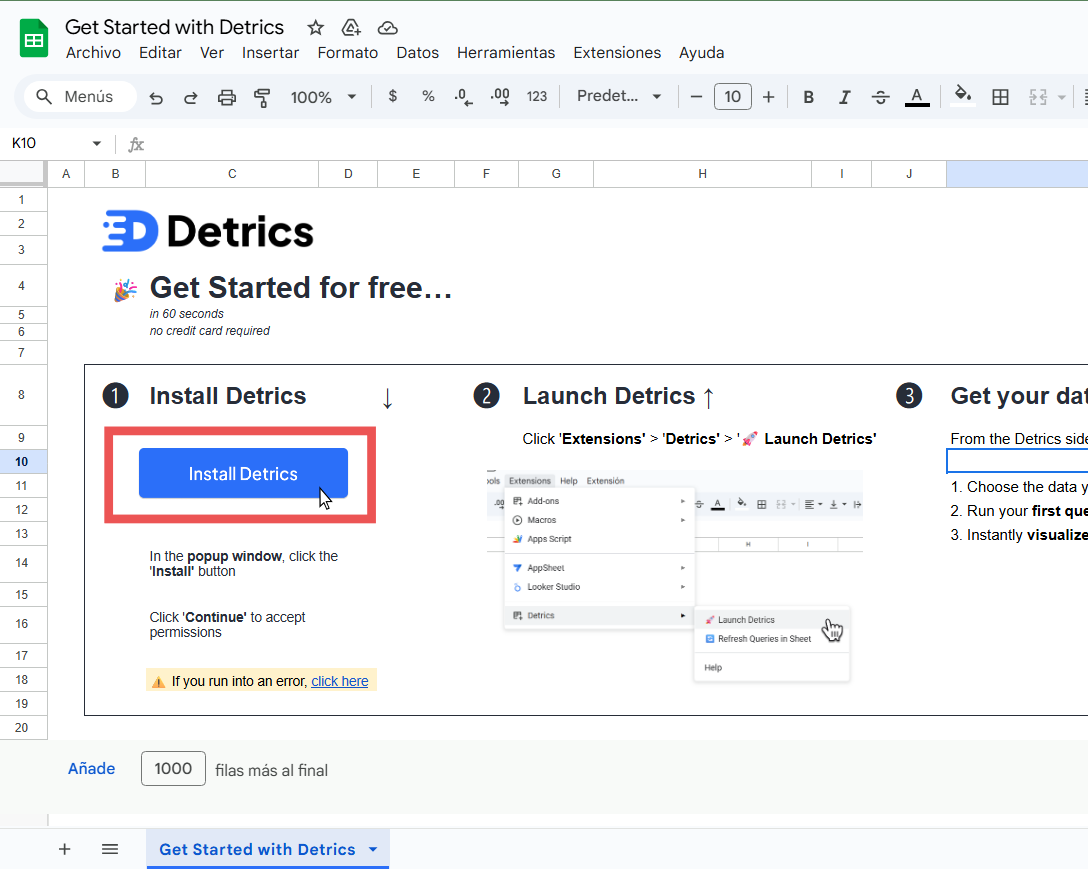
 Follow the steps from the onboarding file created for you in the previous step
to install the Detrics Add-on for Google Sheets.
Follow the steps from the onboarding file created for you in the previous step
to install the Detrics Add-on for Google Sheets.
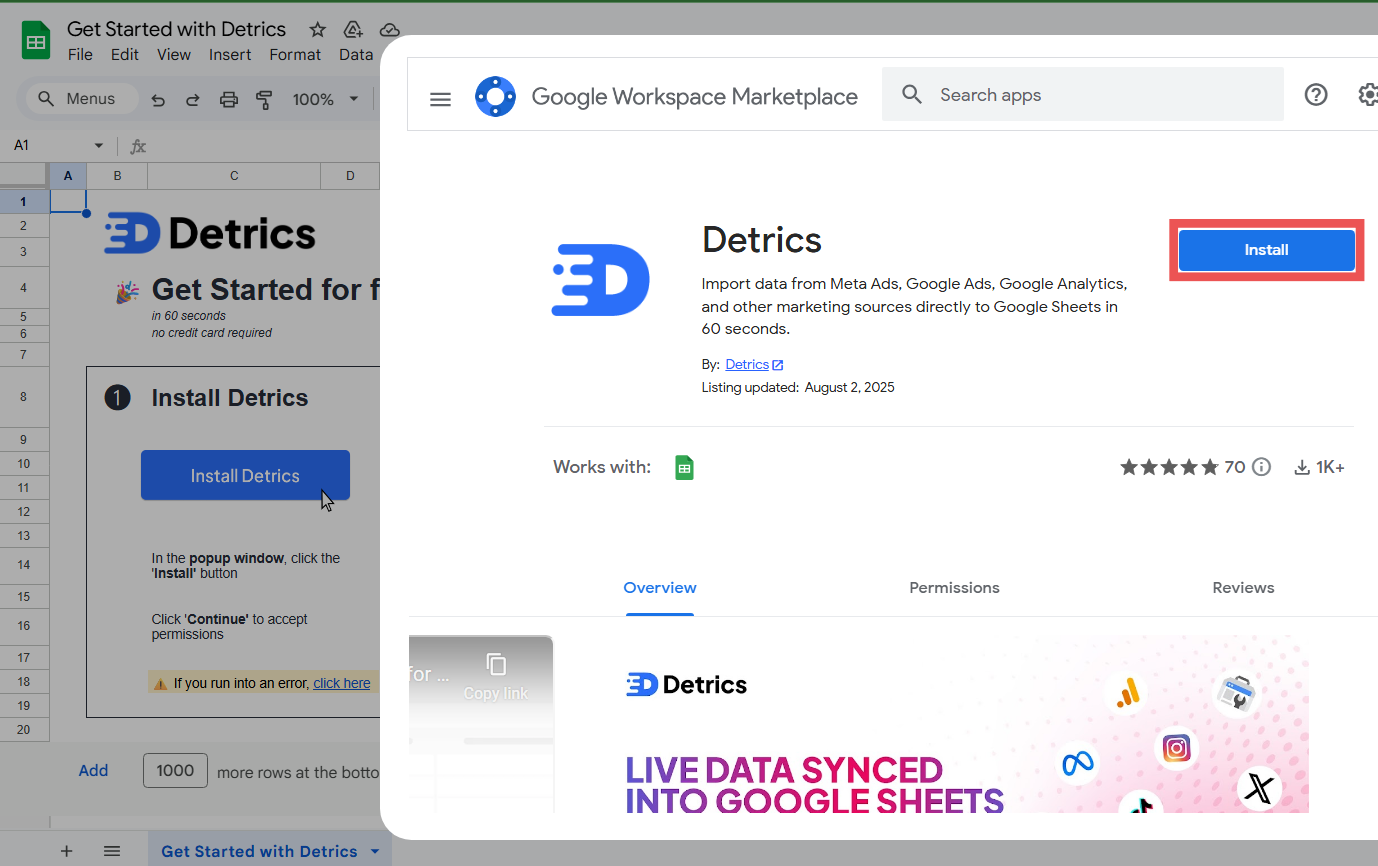
 Click the "Install" button in the pop-up that appears showing the app in
Google Workspace Marketplace. You'll then need to go through the Google
authorization flow to authorize Detrics to connect to your Google account.
Click the "Install" button in the pop-up that appears showing the app in
Google Workspace Marketplace. You'll then need to go through the Google
authorization flow to authorize Detrics to connect to your Google account.
 Create a new tab in the onboarding sheet that was created for you and open the
Detrics sidebar by going to **Extensions → Detrics → Launch Detrics**.
Create a new tab in the onboarding sheet that was created for you and open the
Detrics sidebar by going to **Extensions → Detrics → Launch Detrics**.
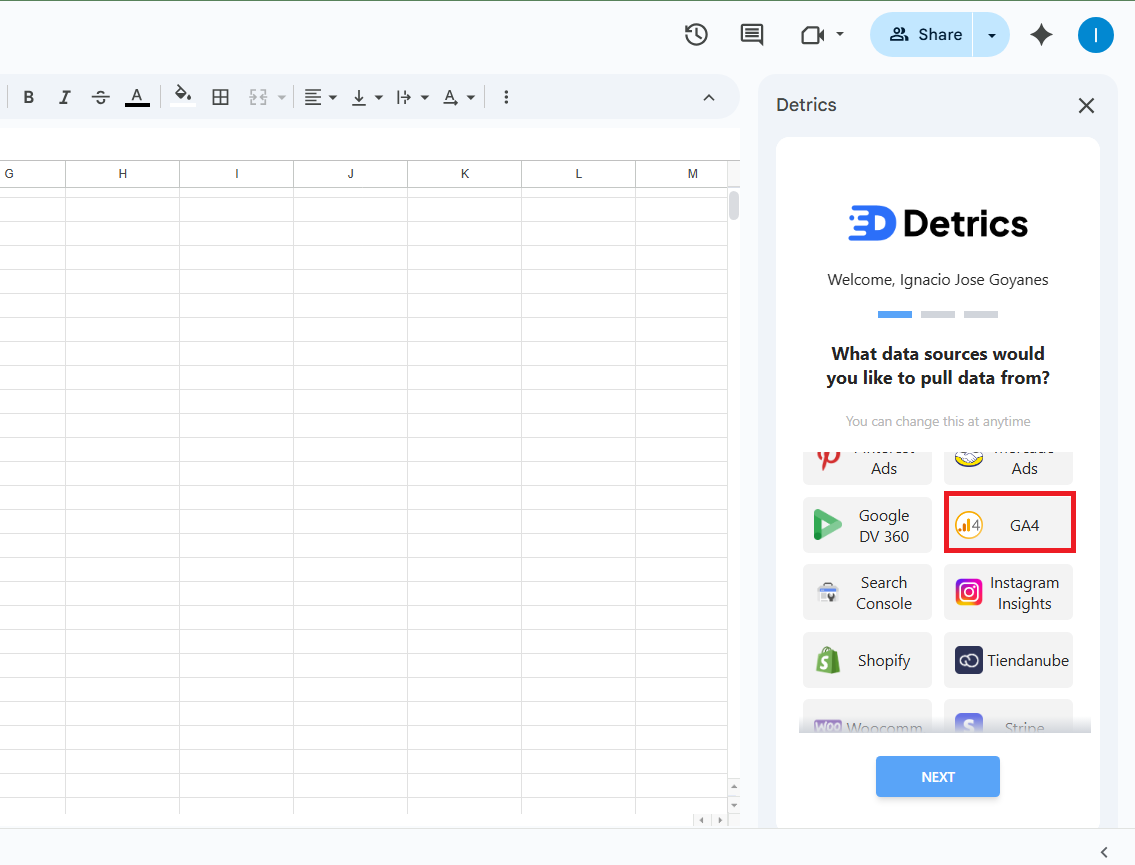
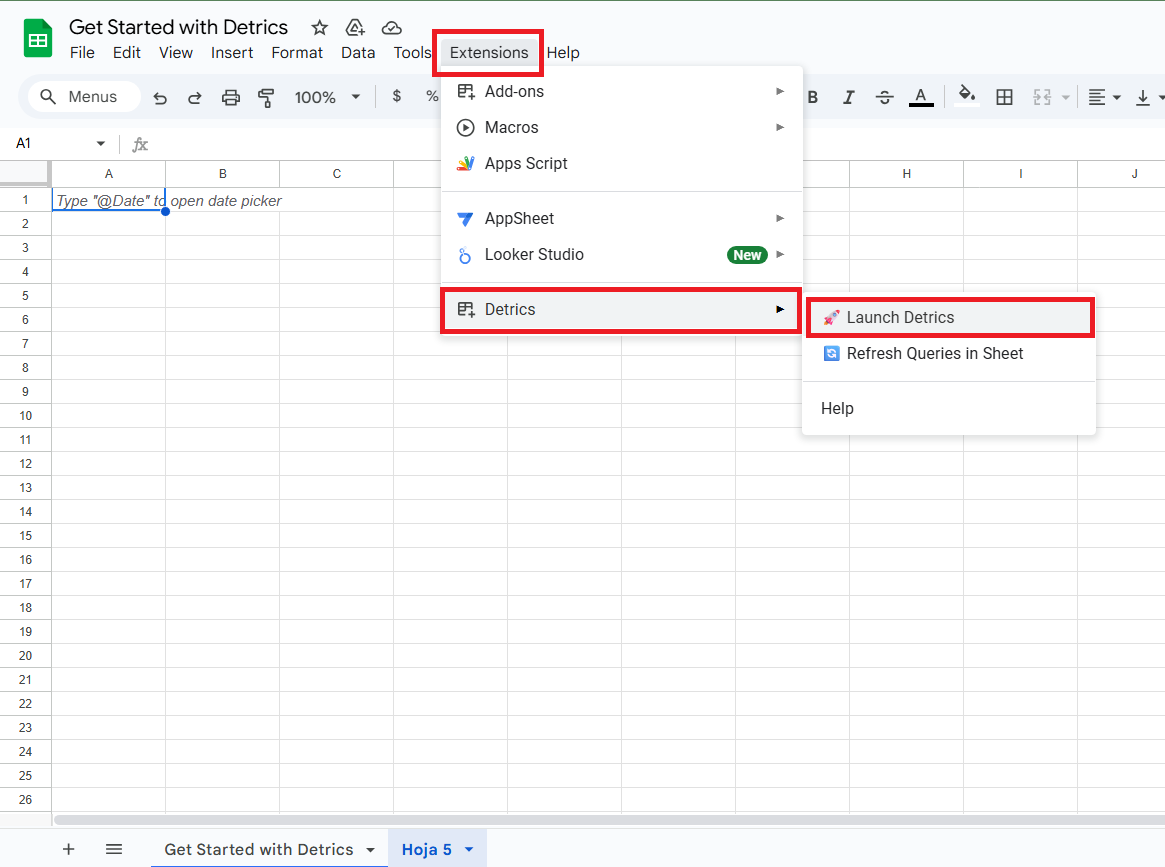 Select the data source you want to connect to Detrics and retrieve data from.
You can choose from various platforms like Facebook Ads, Google Ads, Google
Analytics 4, and more.
Select the data source you want to connect to Detrics and retrieve data from.
You can choose from various platforms like Facebook Ads, Google Ads, Google
Analytics 4, and more.
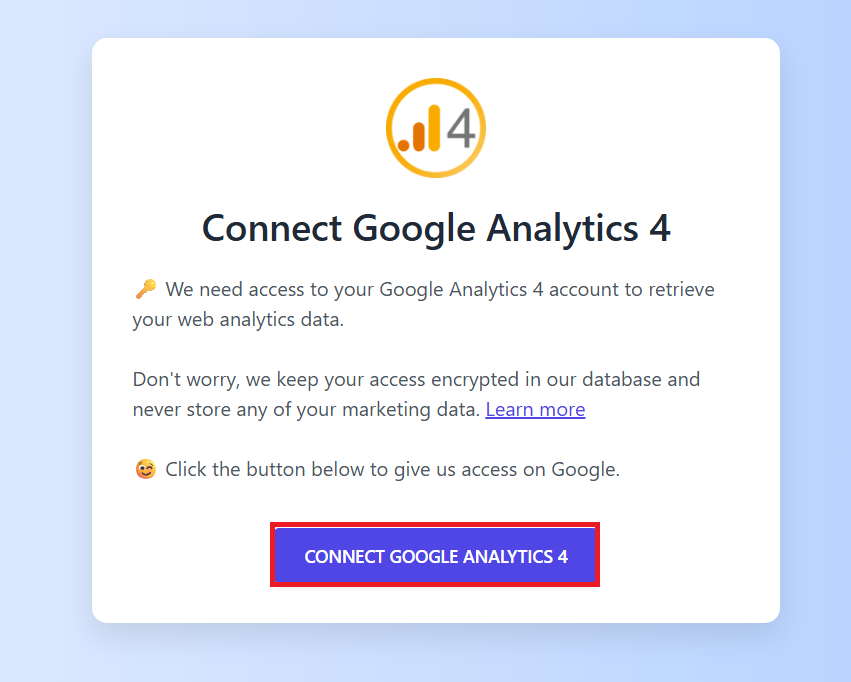
 Grant access to Detrics in order for Detrics to be able to retrieve data from
your selected data source. Click the connect button to authorize Detrics to
access your account data.
Grant access to Detrics in order for Detrics to be able to retrieve data from
your selected data source. Click the connect button to authorize Detrics to
access your account data.
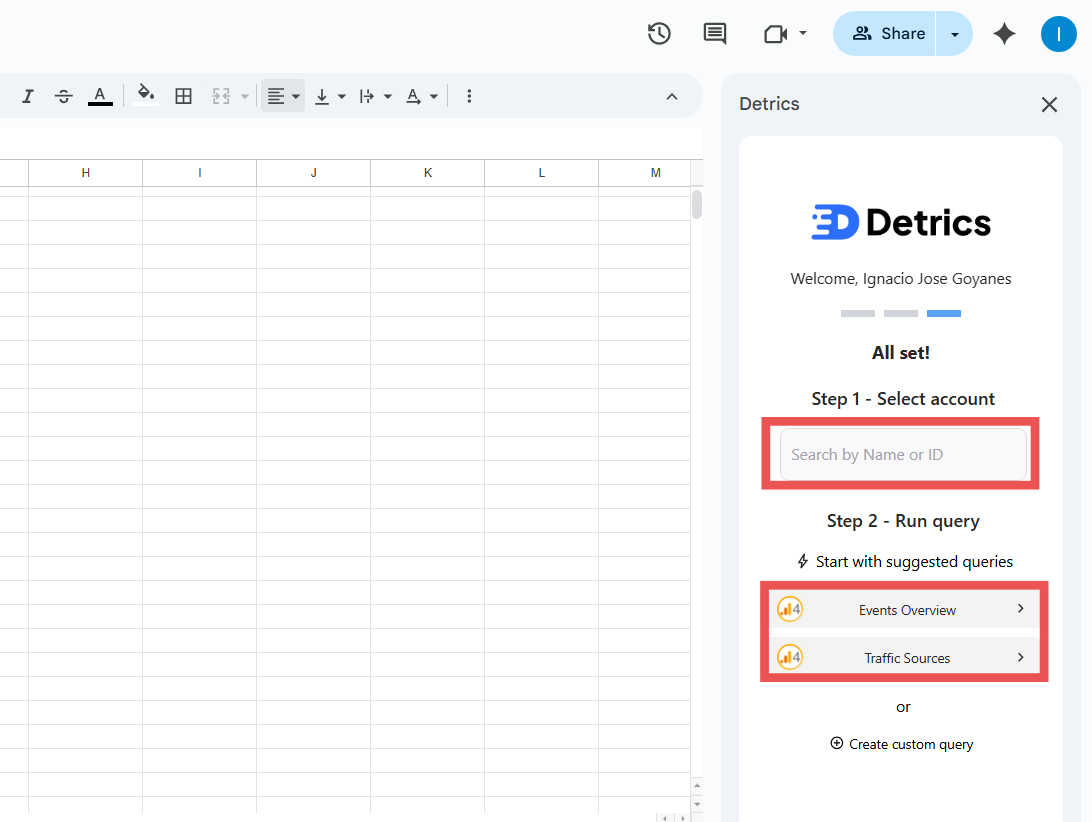
 Select the account you want to pull data from. You can search by name or ID
for a quick search to find your specific account. Then select one of the
suggested Queries to streamline the Query creation process. Data will appear
on the sheet in no time.
Select the account you want to pull data from. You can search by name or ID
for a quick search to find your specific account. Then select one of the
suggested Queries to streamline the Query creation process. Data will appear
on the sheet in no time.
 ## Create Your First Query
Open a new Google Sheets document ([click here to create
one](https://sheets.new)), then go to **Extensions → Detrics → Launch
Detrics**.
Click "Connect Account" and select your first data source (e.g., Facebook
(Meta) Ads, Google Ads).
## Create Your First Query
Open a new Google Sheets document ([click here to create
one](https://sheets.new)), then go to **Extensions → Detrics → Launch
Detrics**.
Click "Connect Account" and select your first data source (e.g., Facebook
(Meta) Ads, Google Ads).
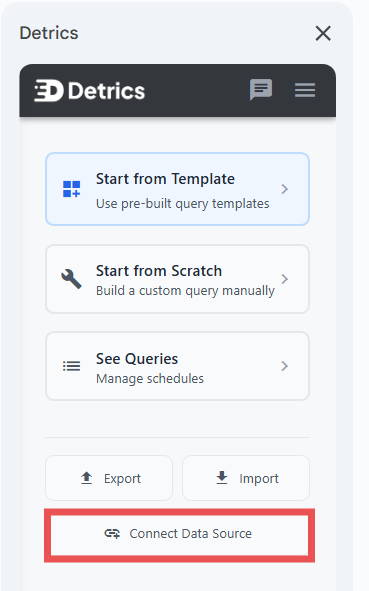 Choose the specific data source you want to connect from the available
options.
Choose the specific data source you want to connect from the available
options.
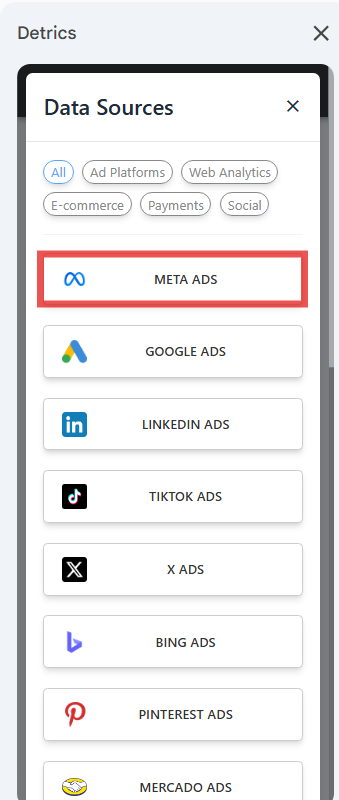 Select "Start from Template" and choose your desired data source. If your
desired data source can't be found, you'll need to connect it by clicking
"Connect Data Source".
Select "Start from Template" and choose your desired data source. If your
desired data source can't be found, you'll need to connect it by clicking
"Connect Data Source".
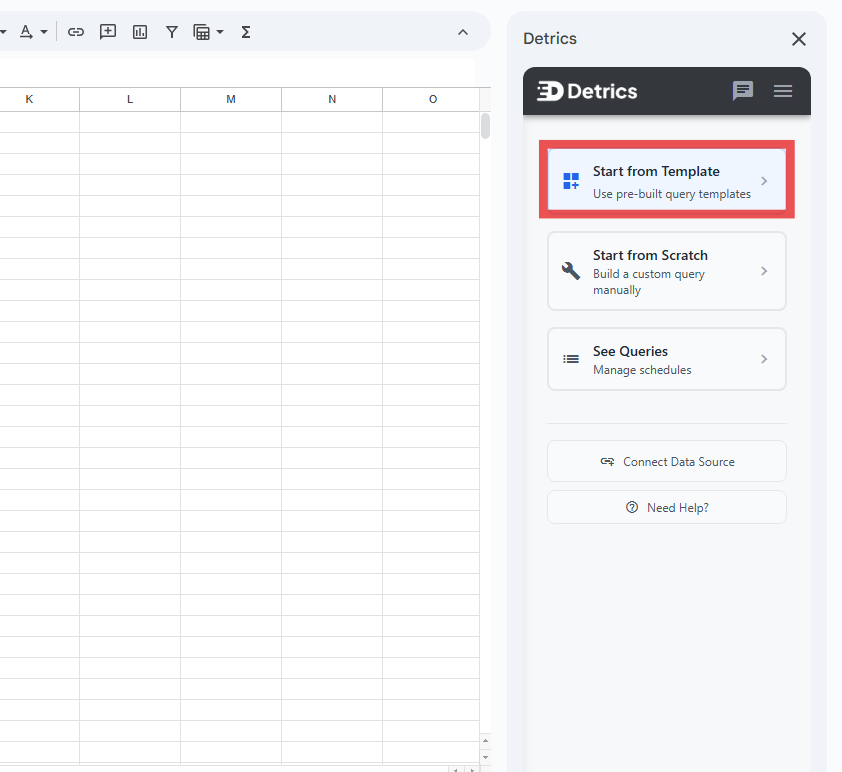 Choose between all the template options. Take a look at the name and
description to understand what the template will download or what information
the output will be.
Choose between all the template options. Take a look at the name and
description to understand what the template will download or what information
the output will be.
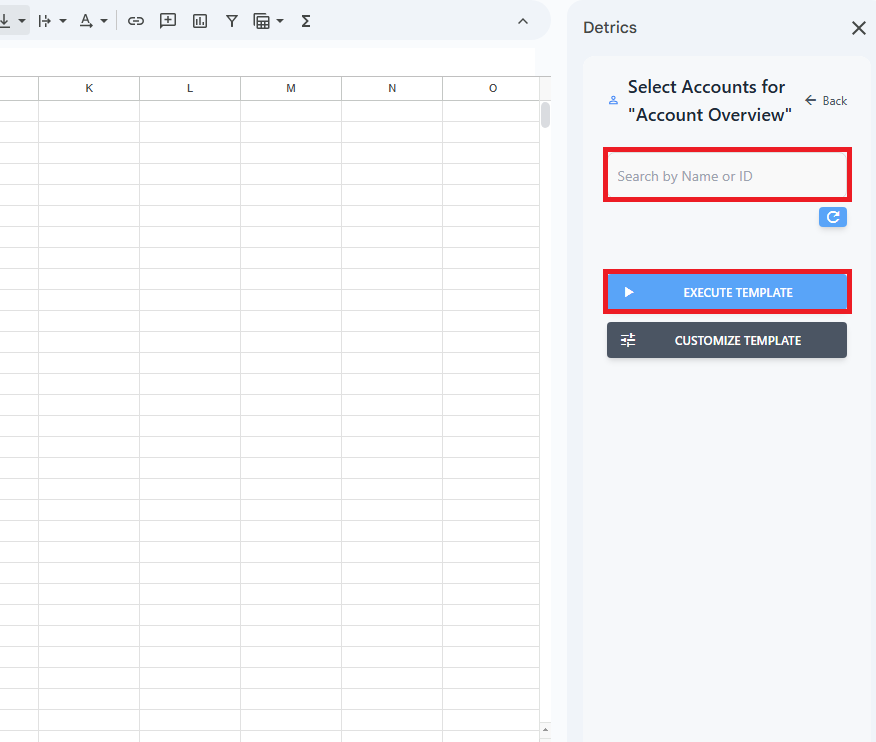
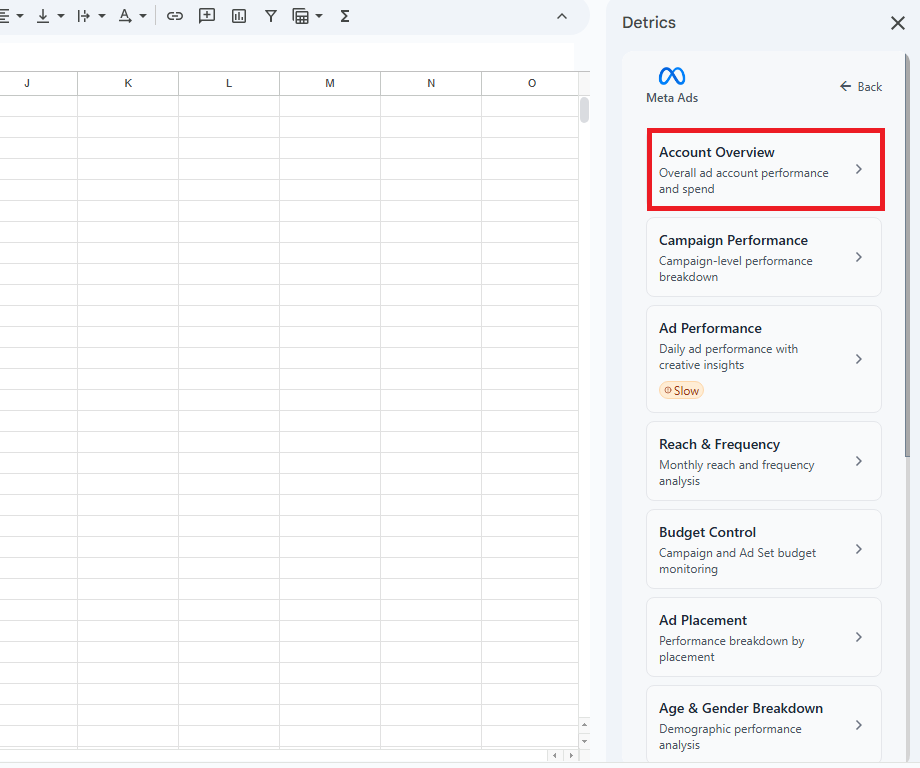 Input the account you want to use for the desired template. You can search by
name or ID to find your account quickly. Click "Execute Template" and the data
will be visible in the spreadsheet.
Input the account you want to use for the desired template. You can search by
name or ID to find your account quickly. Click "Execute Template" and the data
will be visible in the spreadsheet.
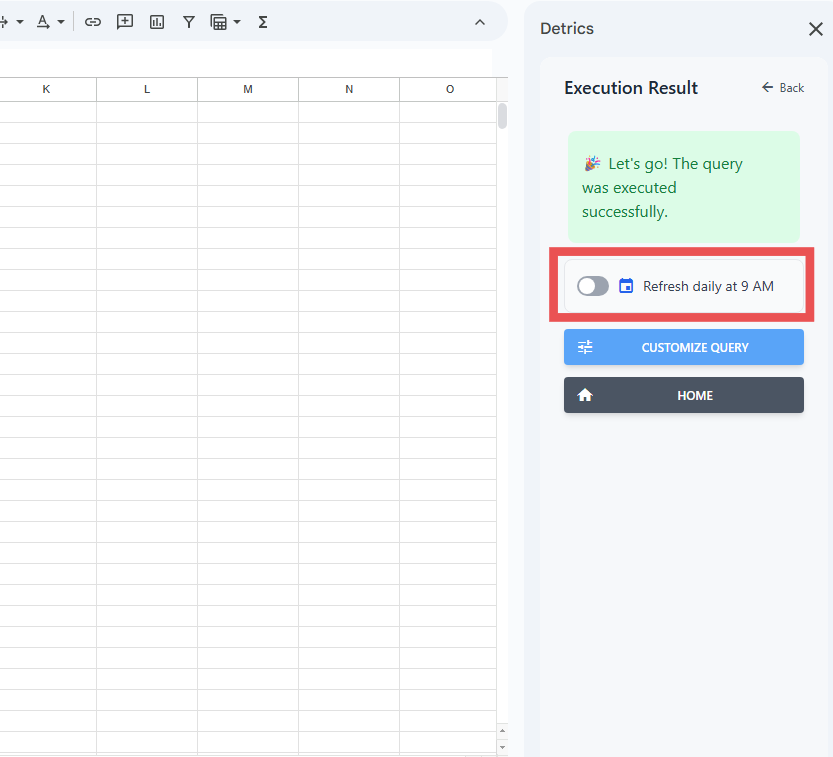
 Activate the toggle to set up automatic refresh at 9 AM in your local timezone
to keep your data up-to-date.
Activate the toggle to set up automatic refresh at 9 AM in your local timezone
to keep your data up-to-date.
 Now that you've created your first query, explore these powerful features to
maximize your productivity:
* **Customize query templates** - Learn how to modify templates to match your exact reporting needs. [Read the guide →](/data-destination/google-sheets/how-to-use-query-templates#customizing-templates)
* **Copy queries across files instantly** - Save time by importing and exporting queries between spreadsheets with just a few clicks. [Learn how →](/data-destination/google-sheets/how-to-import-export-queries)
## Create Your First Google Sheets Report with Detrics
Now that you've got the basics down, let's dive into the good stuff!
Learn [how to create Google Sheets reports with Detrics](/data-destination/google-sheets/how-to-create-a-report) and discover time-saving tips, best practices, and hidden features that will help you build reports 10x faster. Master the techniques that make reporting actually enjoyable.
Happy reporting! 📊
## Troubleshooting
If things don't go as expected, visit the [Google Sheets Troubleshooting section](/data-destination/google-sheets/troubleshooting) for solutions to common issues and step-by-step guides.
**Need help?** If errors persist after following these steps, please reach out
to [support@detrics.io](mailto:support@detrics.io)
Now that you've created your first query, explore these powerful features to
maximize your productivity:
* **Customize query templates** - Learn how to modify templates to match your exact reporting needs. [Read the guide →](/data-destination/google-sheets/how-to-use-query-templates#customizing-templates)
* **Copy queries across files instantly** - Save time by importing and exporting queries between spreadsheets with just a few clicks. [Learn how →](/data-destination/google-sheets/how-to-import-export-queries)
## Create Your First Google Sheets Report with Detrics
Now that you've got the basics down, let's dive into the good stuff!
Learn [how to create Google Sheets reports with Detrics](/data-destination/google-sheets/how-to-create-a-report) and discover time-saving tips, best practices, and hidden features that will help you build reports 10x faster. Master the techniques that make reporting actually enjoyable.
Happy reporting! 📊
## Troubleshooting
If things don't go as expected, visit the [Google Sheets Troubleshooting section](/data-destination/google-sheets/troubleshooting) for solutions to common issues and step-by-step guides.
**Need help?** If errors persist after following these steps, please reach out
to [support@detrics.io](mailto:support@detrics.io)