> ## Documentation Index
> Fetch the complete documentation index at: https://support.detrics.io/llms.txt
> Use this file to discover all available pages before exploring further.
# LinkedIn Ads Troubleshooting
> Complete troubleshooting guide for LinkedIn Ads integration
**Last updated:** July 28, 2025
Having trouble connecting your LinkedIn Ads account to Detrics? This comprehensive guide will help you diagnose and resolve the most common connection issues.
## Understanding LinkedIn Access Expiration
Access to LinkedIn Ads can expire for various reasons. These are the most common causes of connection issues:
Changing your LinkedIn password automatically revokes access tokens for
connected third-party applications.
LinkedIn may revoke access during routine security reviews, especially for
recently connected applications like Detrics.
Due to LinkedIn's privacy policy, access must be renewed every two months.
This is beyond our control and unfortunately required by the platform.
**Solution:** When access expires, you'll need to **reconnect your LinkedIn Ads account to Detrics** through the connection setup process. This re-establishes the authentication and renews the access tokens.
**Important:** Once you reconnect LinkedIn Ads, all your existing queries and Looker Studio dashboards linked to your LinkedIn accounts will automatically start working again. The reconnection process fixes all connections at once - you don't need to recreate your queries or dashboards.
## Fix Persistent Connection Issues (Full Reset)
If reconnecting doesn't resolve your issues, follow these steps for a complete reset. This will fix all your LinkedIn Ads queries and dashboards at once.
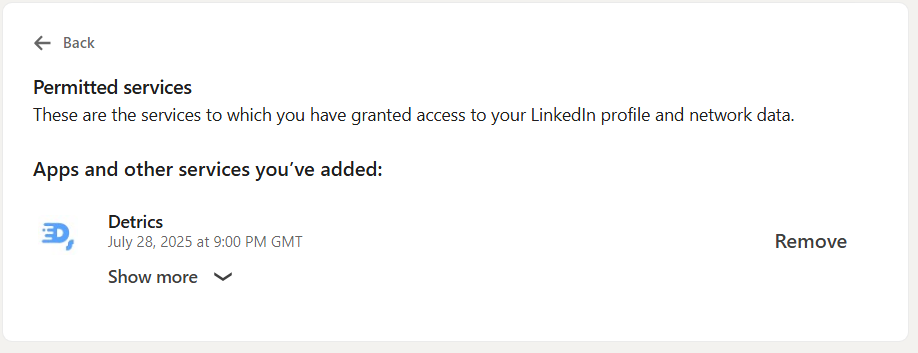
Go to [LinkedIn Settings & Privacy](https://www.linkedin.com/mypreferences/d/data-sharing-for-permitted-services) and remove Detrics from your permitted services.
 Open a new Google Spreadsheet or [click here](https://sheets.new) to create a new sheet directly.
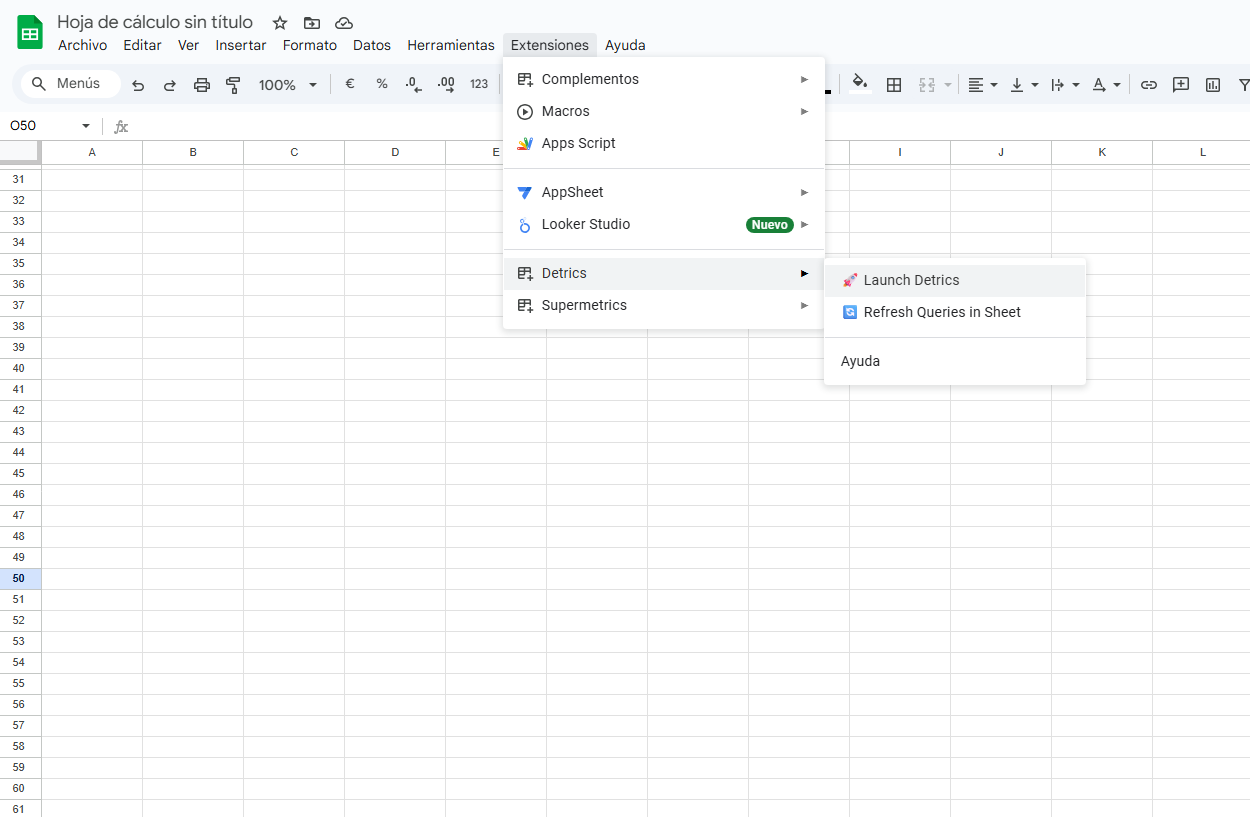
Fire up Detrics: Select *Extensions* > *Detrics* > *Launch*
Open a new Google Spreadsheet or [click here](https://sheets.new) to create a new sheet directly.
Fire up Detrics: Select *Extensions* > *Detrics* > *Launch*
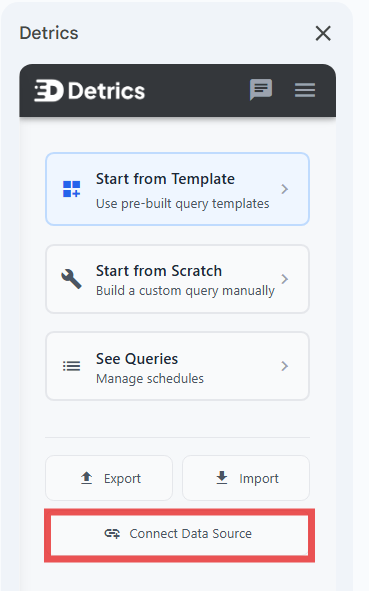
 Click on *"Connect Data Source"*
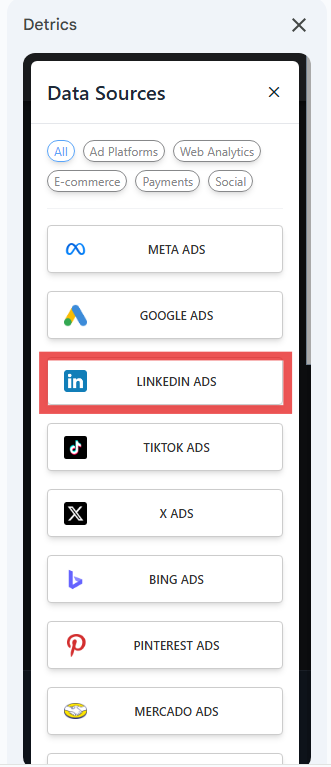
 Select LinkedIn Ads from the list of available data sources and complete the LinkedIn authentication process to re-establish access to your Campaign Manager account.
 ## Shared Connection Between Google Sheets and Looker Studio
Google Sheets and Looker Studio share the same LinkedIn Ads connection. This means:
* **Single reconnection fixes both platforms:** When you reconnect LinkedIn Ads through Google Sheets, your Looker Studio dashboards are automatically fixed too
* **No duplicate setup needed:** You only need to reconnect once, regardless of which platform you primarily use
### Alternative: Reconnect Through Looker Studio
Looker Studio users can also reconnect LinkedIn Ads directly through Looker Studio:
1. Open your Looker Studio dashboard that uses LinkedIn Ads data
2. Click on any chart showing connection errors
3. Select "Reconnect" when prompted
4. Complete the LinkedIn Ads authentication process
5. All your LinkedIn Ads queries in both Looker Studio and Google Sheets will be restored
**Need help?** If errors persist after following these steps, please reach out to [support@detrics.io](mailto:support@detrics.io)
## Shared Connection Between Google Sheets and Looker Studio
Google Sheets and Looker Studio share the same LinkedIn Ads connection. This means:
* **Single reconnection fixes both platforms:** When you reconnect LinkedIn Ads through Google Sheets, your Looker Studio dashboards are automatically fixed too
* **No duplicate setup needed:** You only need to reconnect once, regardless of which platform you primarily use
### Alternative: Reconnect Through Looker Studio
Looker Studio users can also reconnect LinkedIn Ads directly through Looker Studio:
1. Open your Looker Studio dashboard that uses LinkedIn Ads data
2. Click on any chart showing connection errors
3. Select "Reconnect" when prompted
4. Complete the LinkedIn Ads authentication process
5. All your LinkedIn Ads queries in both Looker Studio and Google Sheets will be restored
**Need help?** If errors persist after following these steps, please reach out to [support@detrics.io](mailto:support@detrics.io)