> ## Documentation Index
> Fetch the complete documentation index at: https://support.detrics.io/llms.txt
> Use this file to discover all available pages before exploring further.
# Google Ads Troubleshooting
> Complete troubleshooting guide for Google Ads integration
**Last updated:** July 28, 2025
Having trouble connecting your Google Ads account to Detrics? This comprehensive guide will help you diagnose and resolve the most common connection issues.
## Understanding Google Access Expiration
Google disconnections typically occur when you first start using Detrics. The exact reason for these initial disconnections is unclear, but they commonly happen during the early stages of using the platform. Once this initial issue is resolved through reconnection, you won't need to reconnect again.
**Solution:** When access expires, you'll need to **reconnect your Google Ads account to Detrics** through the connection setup process. This re-establishes the authentication and renews the access tokens.
**Important:** Once you reconnect Google Ads, all your existing queries and Looker Studio dashboards linked to your Google accounts will automatically start working again. The reconnection process fixes all connections at once - you don't need to recreate your queries or dashboards.
**Note: While these steps illustrate Google Ads case, they work for all Google products (Google Analytics 4 and Google Sheets).**
## Fix Persistent Connection Issues (Full Reset)
If reconnecting doesn't resolve your issues, follow these steps for a complete reset. This will fix all your Google Ads queries and dashboards at once.
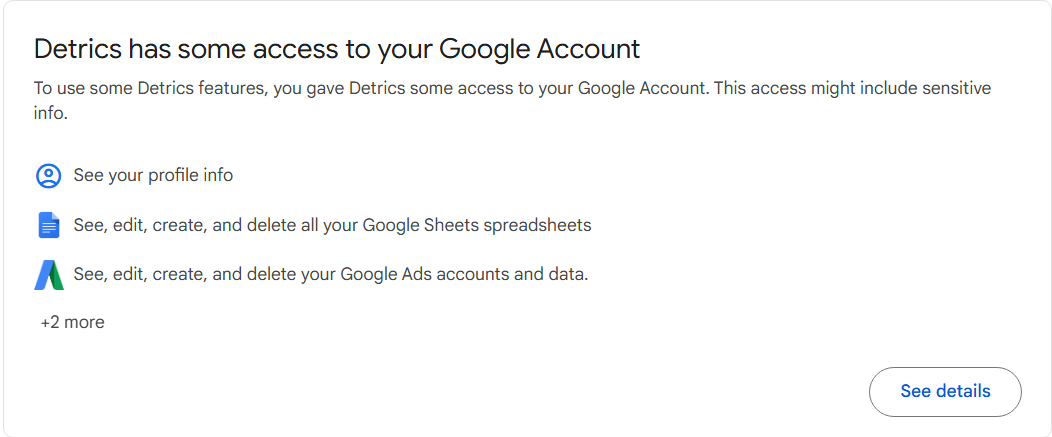
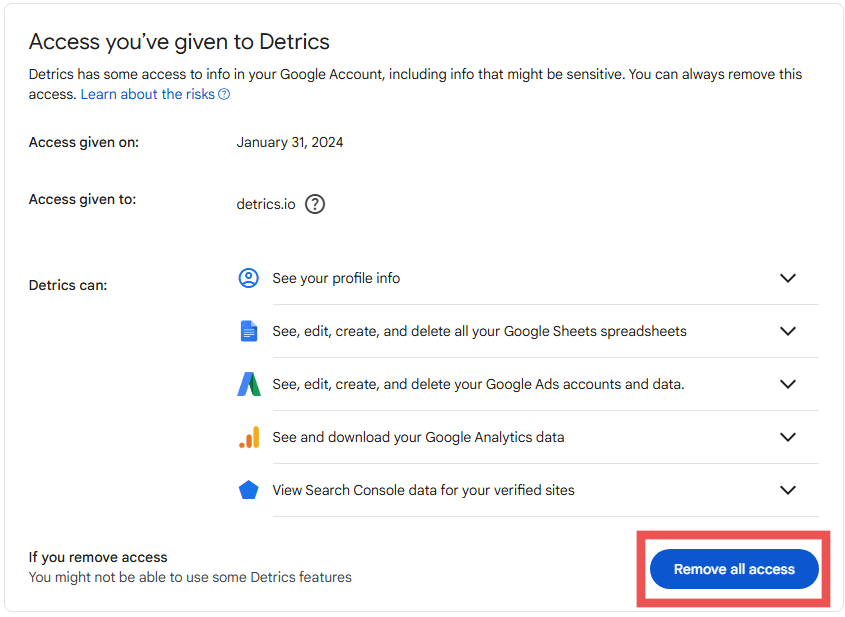
Go to [Google Account Permissions](https://myaccount.google.com/permissions)
and revoke access to the Detrics app.
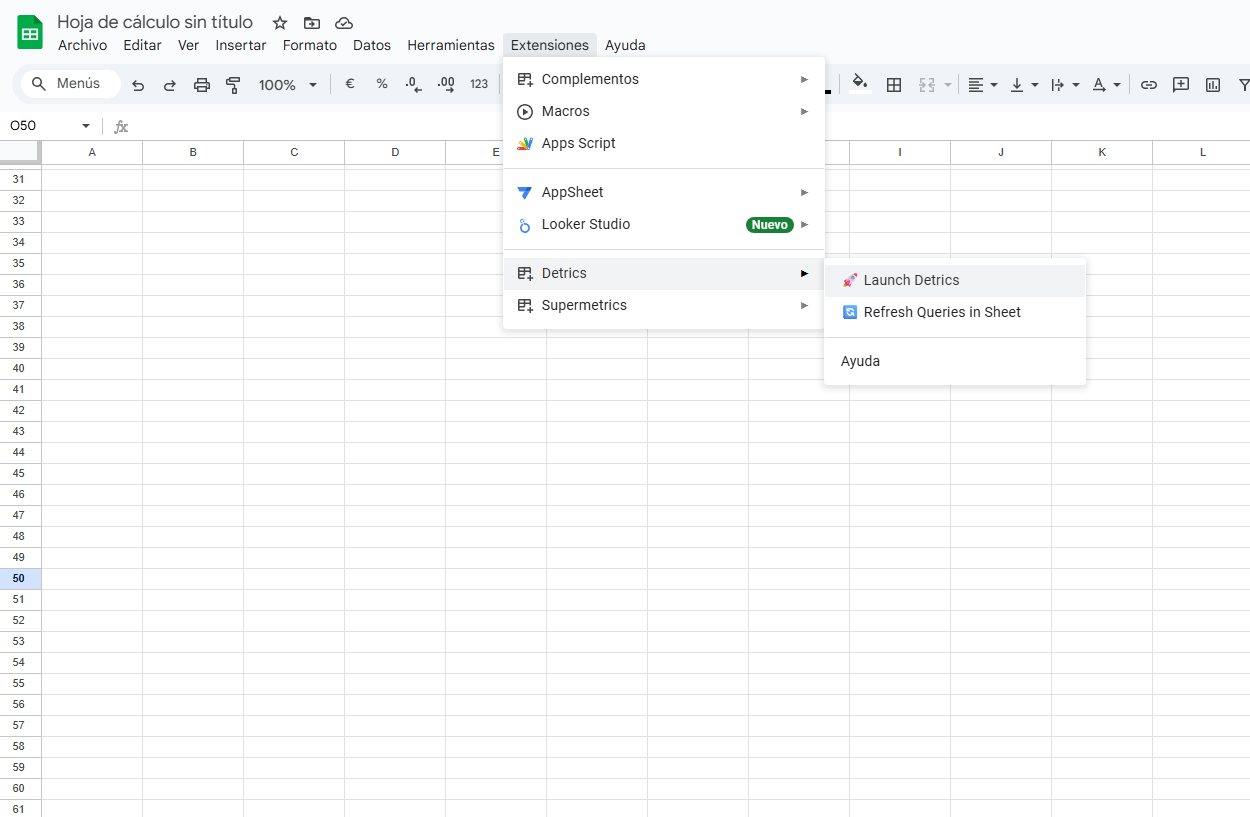
Open a new Google Spreadsheet or [click here](https://sheets.new) to create
a new sheet directly.
Fire up Detrics: Select *Extensions* > *Detrics* > *Launch*
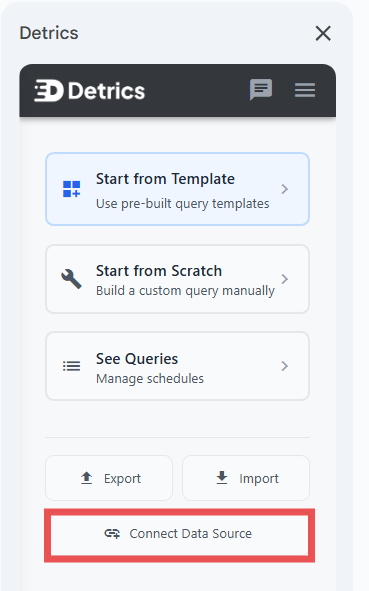
 Click on *"Connect Data Source"*
 Choose Google Ads from the list of available data sources.
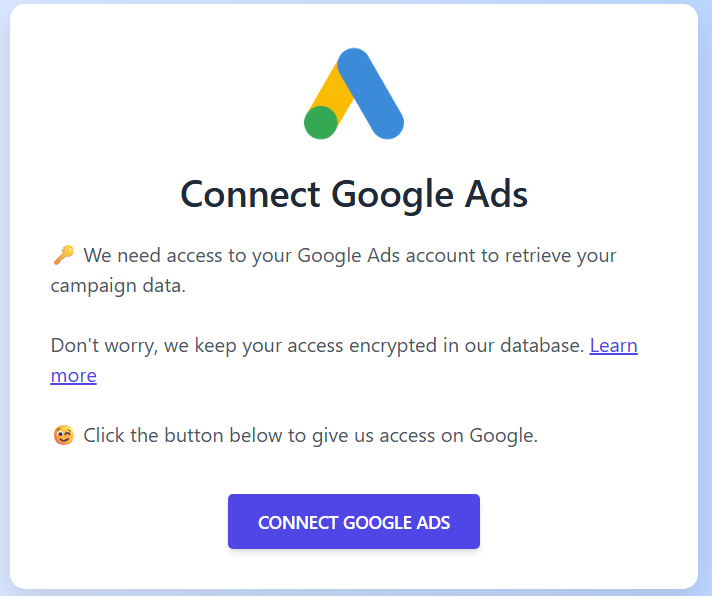
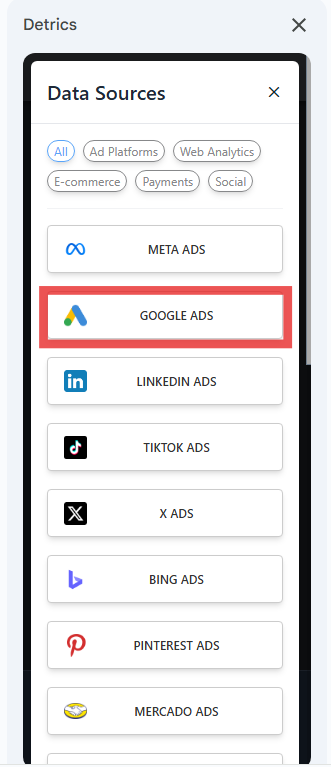 Complete the reconnection process to re-establish access.
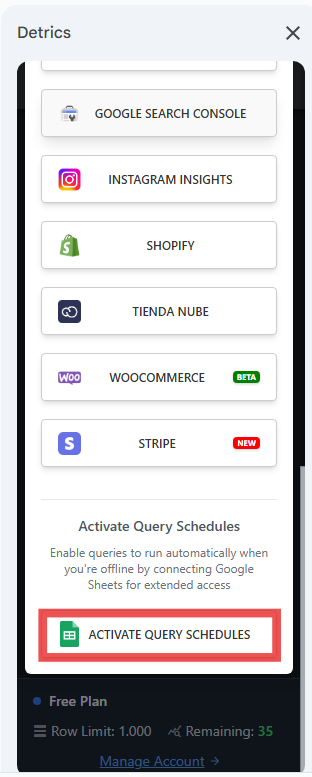
 Reconnect Google Sheets to complete the process.
 **⚠️ IMPORTANT:** After completing this process, you must reconnect ALL Google products you use with Detrics:
* Google Analytics 4
* DV360
* Google Sheets
* Google Ads
* Google Search Console
Failure to reconnect all products will result in incomplete data synchronization.
## Shared Connection Between Google Sheets and Looker Studio
Google Sheets and Looker Studio share the same Google Ads connection. This means:
* **Single reconnection fixes both platforms:** When you reconnect Google Ads through Google Sheets, your Looker Studio dashboards are automatically fixed too
* **No duplicate setup needed:** You only need to reconnect once, regardless of which platform you primarily use
### Alternative: Reconnect Through Looker Studio
Looker Studio users can also reconnect Google Ads directly through Looker Studio:
1. Open your Looker Studio dashboard that uses Google Ads data
2. Click on any chart showing connection errors
3. Select "Reconnect" when prompted
4. Complete the Google Ads authentication process
5. All your Google Ads queries in both Looker Studio and Google Sheets will be restored
**Need help?** If errors persist after following these steps, please reach out
to [support@detrics.io](mailto:support@detrics.io)
**⚠️ IMPORTANT:** After completing this process, you must reconnect ALL Google products you use with Detrics:
* Google Analytics 4
* DV360
* Google Sheets
* Google Ads
* Google Search Console
Failure to reconnect all products will result in incomplete data synchronization.
## Shared Connection Between Google Sheets and Looker Studio
Google Sheets and Looker Studio share the same Google Ads connection. This means:
* **Single reconnection fixes both platforms:** When you reconnect Google Ads through Google Sheets, your Looker Studio dashboards are automatically fixed too
* **No duplicate setup needed:** You only need to reconnect once, regardless of which platform you primarily use
### Alternative: Reconnect Through Looker Studio
Looker Studio users can also reconnect Google Ads directly through Looker Studio:
1. Open your Looker Studio dashboard that uses Google Ads data
2. Click on any chart showing connection errors
3. Select "Reconnect" when prompted
4. Complete the Google Ads authentication process
5. All your Google Ads queries in both Looker Studio and Google Sheets will be restored
**Need help?** If errors persist after following these steps, please reach out
to [support@detrics.io](mailto:support@detrics.io)