> ## Documentation Index
> Fetch the complete documentation index at: https://support.detrics.io/llms.txt
> Use this file to discover all available pages before exploring further.
# Troubleshooting
> Common issues and solutions for Google Sheets integration
**Last updated:** August 2, 2025
## How to clear Detrics cache
If the app is showing unexpected errors or not responding, try cleaning your cache by following this video tutorial:
## Problem with install button in Get Started sheet
In some cases, the install button in the Get Started sheet may not work as expected. If you're unable to install Detrics using the in-sheet button, you can install the add-on directly from the Google Workspace Marketplace.
### Step-by-step installation guide
Follow these steps to install and launch Detrics from the Google Workspace Marketplace:
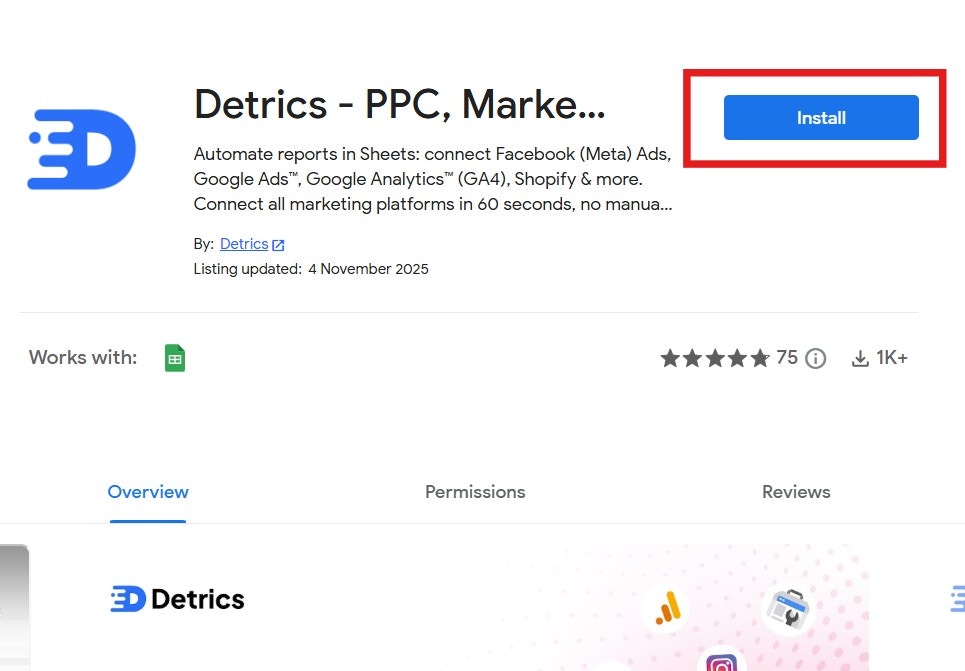
**Step 1: Install from the Marketplace**
Visit the [Detrics Google Workspace Marketplace page](https://workspace.google.com/marketplace/app/detrics_ppc_marketing_analytics_ecommerc/731617833254) and click the **Install** button.
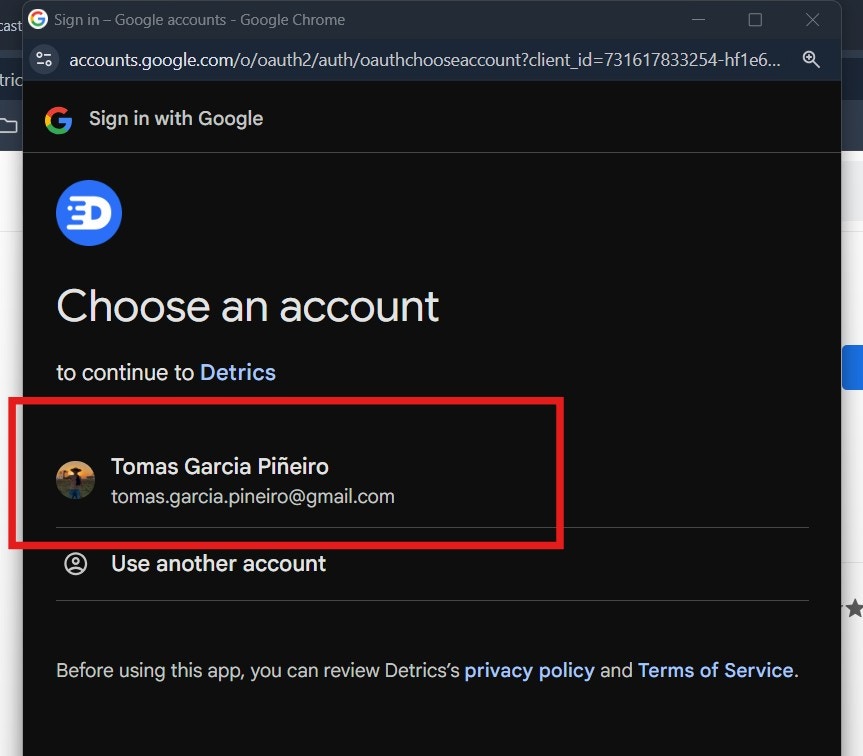
 **Step 2: Select your Google account**
Choose the Google account you want to use with Detrics and click on it to continue.
**Step 2: Select your Google account**
Choose the Google account you want to use with Detrics and click on it to continue.
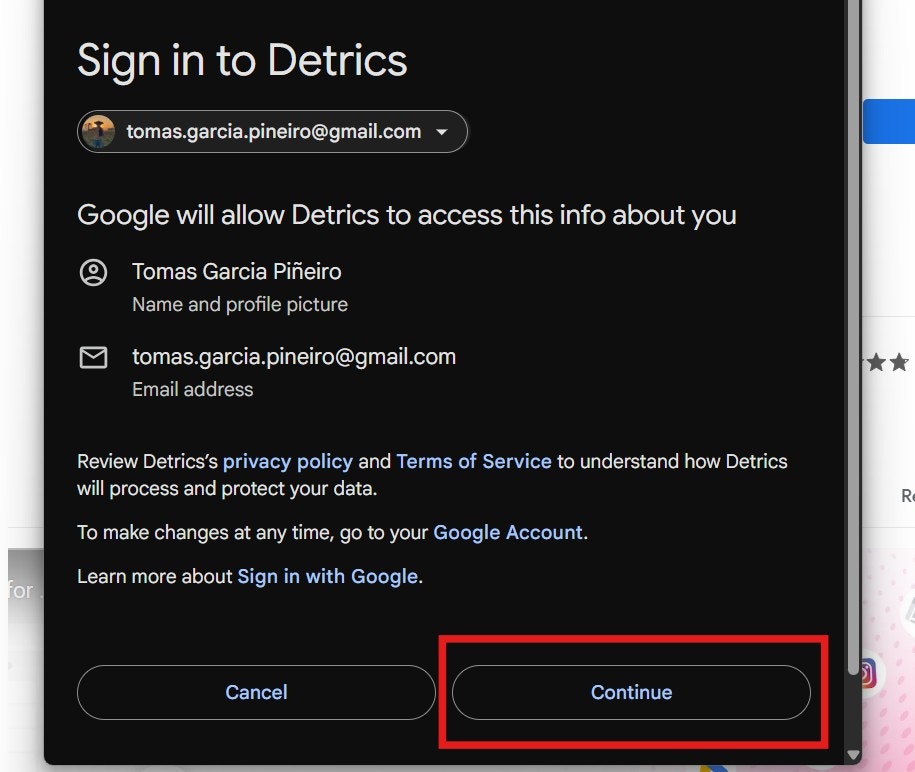
 **Step 3: Review account permissions**
Google will show you what information Detrics will access (your name, profile picture, and email address). Click **Continue** to proceed.
**Step 3: Review account permissions**
Google will show you what information Detrics will access (your name, profile picture, and email address). Click **Continue** to proceed.
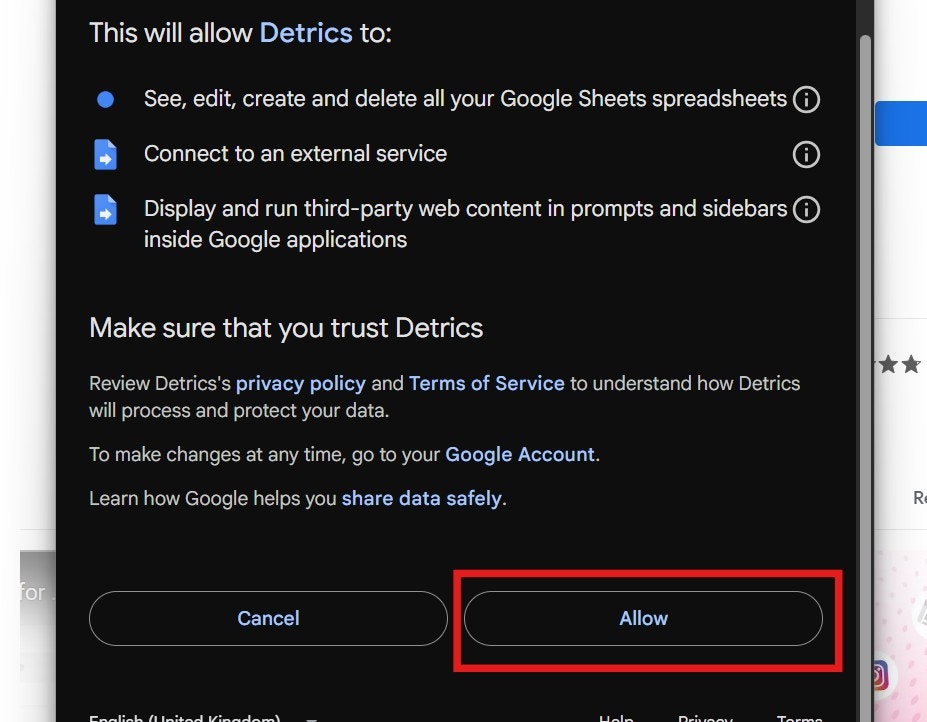
 **Step 4: Grant application permissions**
Review the permissions that Detrics needs to function:
* See, edit, create and delete all your Google Sheets spreadsheets
* Connect to an external service
* Display and run third-party web content in prompts and sidebars
Click **Allow** to grant these permissions.
**Step 4: Grant application permissions**
Review the permissions that Detrics needs to function:
* See, edit, create and delete all your Google Sheets spreadsheets
* Connect to an external service
* Display and run third-party web content in prompts and sidebars
Click **Allow** to grant these permissions.
 **Step 5: Complete the installation**
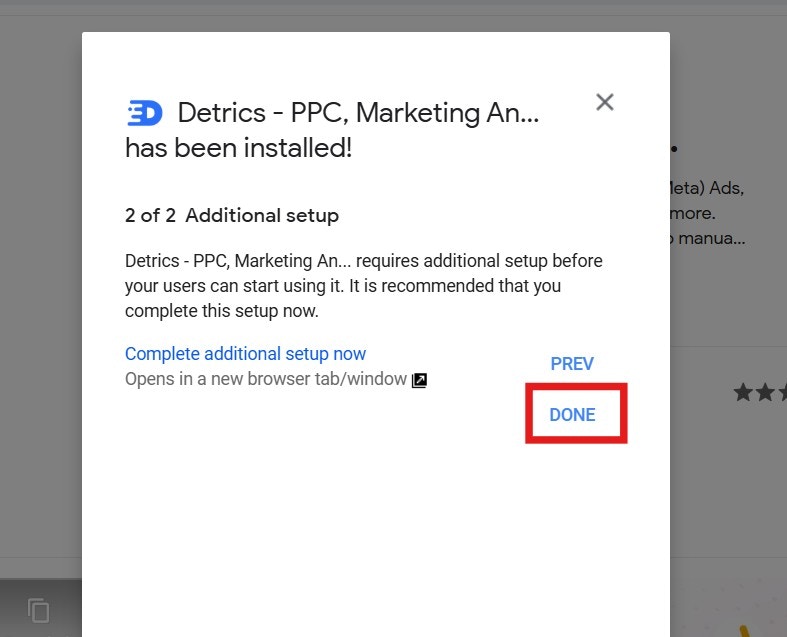
You'll see a confirmation message that Detrics has been installed. Click **DONE** to finish the setup.
**Step 5: Complete the installation**
You'll see a confirmation message that Detrics has been installed. Click **DONE** to finish the setup.
 **Step 6: Launch Detrics in Google Sheets**
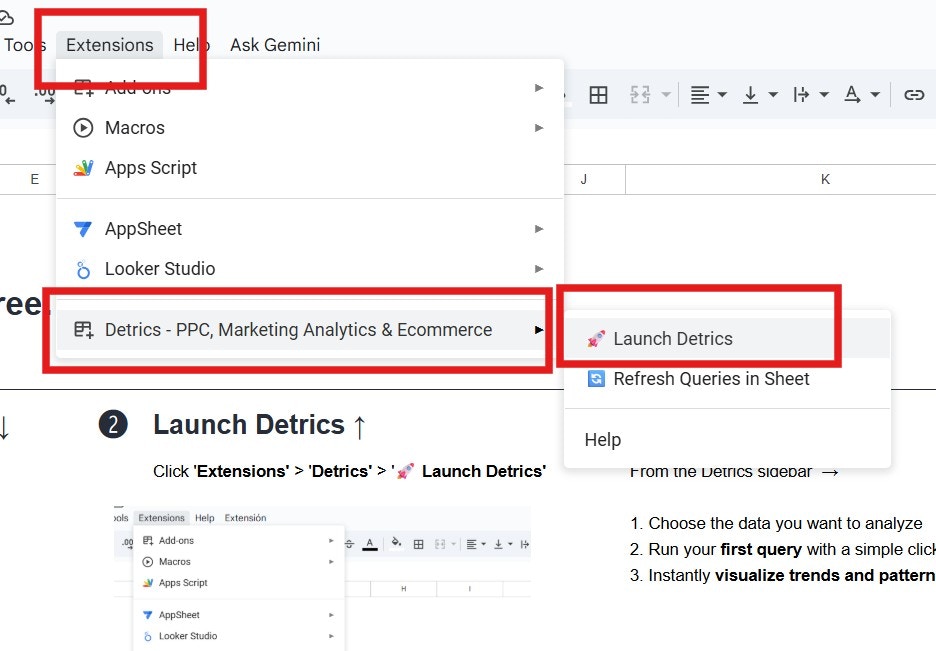
Open any Google Sheet and navigate to **Extensions** > **Detrics - PPC, Marketing Analytics & Ecommerce** > **Launch Detrics** to start using the add-on.
**Step 6: Launch Detrics in Google Sheets**
Open any Google Sheet and navigate to **Extensions** > **Detrics - PPC, Marketing Analytics & Ecommerce** > **Launch Detrics** to start using the add-on.
 If you're experiencing errors with a specific data source, please visit the
troubleshooting section for that particular data source for more targeted
solutions.
**Need help?** If errors persist after following these steps, please reach out
to [support@detrics.io](mailto:support@detrics.io)
If you're experiencing errors with a specific data source, please visit the
troubleshooting section for that particular data source for more targeted
solutions.
**Need help?** If errors persist after following these steps, please reach out
to [support@detrics.io](mailto:support@detrics.io)