> ## Documentation Index
> Fetch the complete documentation index at: https://support.detrics.io/llms.txt
> Use this file to discover all available pages before exploring further.
# How to Create a Google Sheets Report with Detrics
> Step-by-step guide to creating reports in Google Sheets using Detrics
**Last updated:** August 2, 2025
# How to Create a Detrics Query in Google Sheets
This guide will walk you through the process of creating a comprehensive report in Google Sheets using Detrics.
Before starting, make sure you have installed Detrics' add-on and connected to
at least one data source. See our [Google Sheets quickstart
guide](/quickstart/google-sheets) for setup instructions.
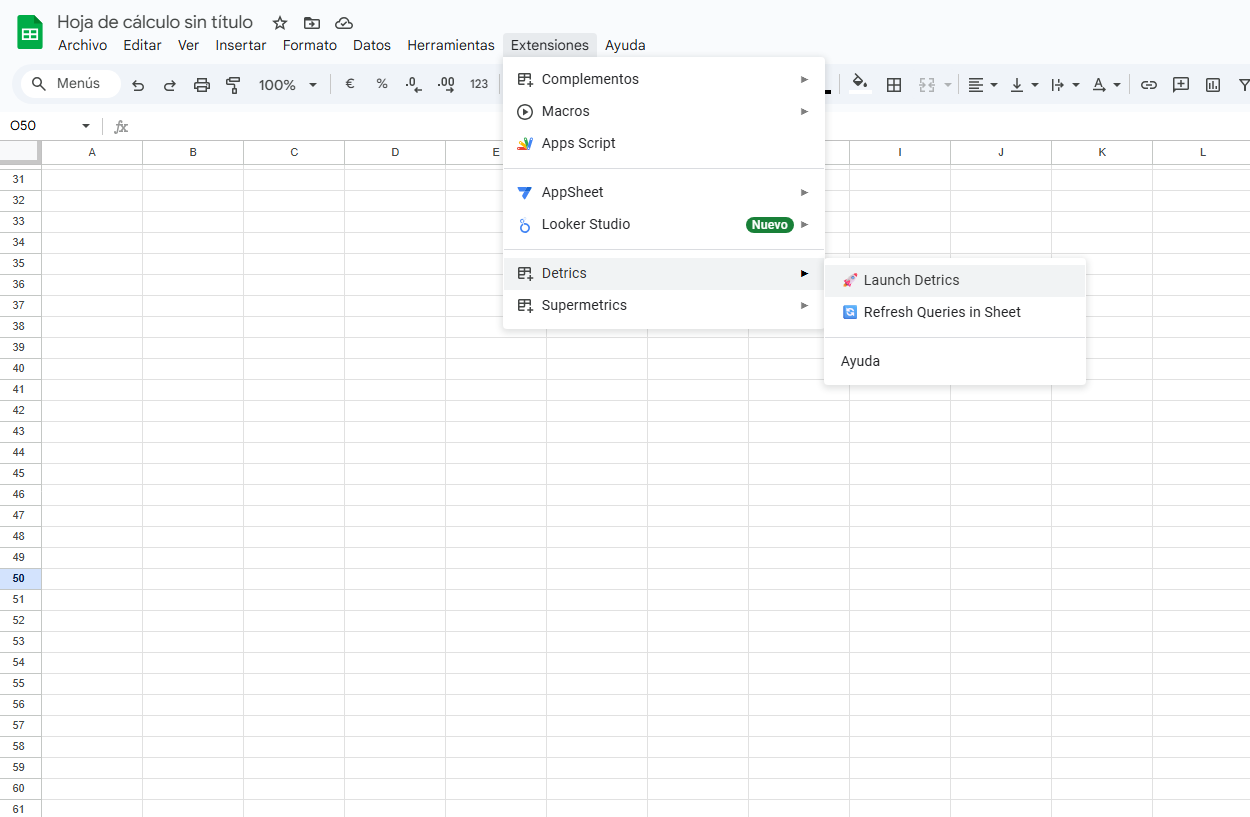
## Step 1: Open Google Sheets and Launch Detrics
1. Open a new Google Sheets document ([click here to create one](https://sheets.new))
2. Navigate to **Extensions** → **Detrics** → **Launch sidebar**
3. The Detrics sidebar will appear on the right side of your sheet
 ## Step 2: Select Your Data Source
1. In the Detrics sidebar, click on **Start from Scratch** to create a Query from scratch or **[Start from Template](/data-destination/google-sheets/how-to-use-query-templates)** to create a Query using Detrics' pre-built templates
2. Select the data source you want to use (e.g., Google Ads, Facebook Ads, etc.)
3. If you haven't connected this source yet, follow the authentication flow
## Step 3: Configure Your Query
### Choose Metrics and Dimensions
1. **Select Metrics**: Choose the metrics you want to include in your report
* Click on the metrics dropdown
* Select metrics like impressions, clicks, conversions, cost, etc.
* You can select multiple metrics for comprehensive reporting
2. **Select Dimensions**: Choose how you want to break down your data
* Common dimensions include date, campaign, ad group, etc.
* Dimensions help you segment and analyze your data
### Set Date Range
1. Click on the date range selector
2. Choose from preset ranges (Last 7 days, Last 30 days, etc.) or set a custom range
3. You can also use dynamic date ranges that update automatically
### Apply Filters (Optional)
1. Click on **Add Filter** to narrow down your data
2. Select the field you want to filter by
3. Choose the operator (equals, contains, greater than, etc.)
4. Enter the filter value
## Step 4: Choose Output Location
1. Select where you want the data to appear in your spreadsheet
2. The default location is cell A1 of the tab linked to the Query
3. You can select a different location:
* Current cell location
* A different specific cell reference (e.g., B5)
## Step 5: Run the Query
1. Review your query configuration
2. Click **Run Query** to fetch the data
3. Detrics will populate your sheet with the requested data
## Step 6: Format and Customize Your Report
### Apply Formatting
1. Select the data range
2. Use Google Sheets formatting options:
* Apply number formats for currencies and percentages
* Add conditional formatting to highlight trends
* Adjust column widths for better readability
### Create Charts and Visualizations
1. Select your data
2. Go to **Insert** → **Chart**
3. Choose appropriate chart types:
* Line charts for trends over time
* Bar charts for comparisons
* Pie charts for proportions
## Step 7: Set Up Automatic Refresh
1. In the Detrics sidebar, click on the query you created
2. Select **Schedule Refresh**
3. Choose refresh frequency:
* Daily
* Weekly
* Monthly
* Custom schedule
4. Set the specific time for refresh
5. Click **Save Schedule**
Learn more about [managing Scheduled Queries](/data-destination/google-sheets/how-to-automate-a-query) to optimize your automatic updates.
**Need help?** If you encounter any issues creating your report, please reach
out to [support@detrics.io](mailto:support@detrics.io)
## Step 2: Select Your Data Source
1. In the Detrics sidebar, click on **Start from Scratch** to create a Query from scratch or **[Start from Template](/data-destination/google-sheets/how-to-use-query-templates)** to create a Query using Detrics' pre-built templates
2. Select the data source you want to use (e.g., Google Ads, Facebook Ads, etc.)
3. If you haven't connected this source yet, follow the authentication flow
## Step 3: Configure Your Query
### Choose Metrics and Dimensions
1. **Select Metrics**: Choose the metrics you want to include in your report
* Click on the metrics dropdown
* Select metrics like impressions, clicks, conversions, cost, etc.
* You can select multiple metrics for comprehensive reporting
2. **Select Dimensions**: Choose how you want to break down your data
* Common dimensions include date, campaign, ad group, etc.
* Dimensions help you segment and analyze your data
### Set Date Range
1. Click on the date range selector
2. Choose from preset ranges (Last 7 days, Last 30 days, etc.) or set a custom range
3. You can also use dynamic date ranges that update automatically
### Apply Filters (Optional)
1. Click on **Add Filter** to narrow down your data
2. Select the field you want to filter by
3. Choose the operator (equals, contains, greater than, etc.)
4. Enter the filter value
## Step 4: Choose Output Location
1. Select where you want the data to appear in your spreadsheet
2. The default location is cell A1 of the tab linked to the Query
3. You can select a different location:
* Current cell location
* A different specific cell reference (e.g., B5)
## Step 5: Run the Query
1. Review your query configuration
2. Click **Run Query** to fetch the data
3. Detrics will populate your sheet with the requested data
## Step 6: Format and Customize Your Report
### Apply Formatting
1. Select the data range
2. Use Google Sheets formatting options:
* Apply number formats for currencies and percentages
* Add conditional formatting to highlight trends
* Adjust column widths for better readability
### Create Charts and Visualizations
1. Select your data
2. Go to **Insert** → **Chart**
3. Choose appropriate chart types:
* Line charts for trends over time
* Bar charts for comparisons
* Pie charts for proportions
## Step 7: Set Up Automatic Refresh
1. In the Detrics sidebar, click on the query you created
2. Select **Schedule Refresh**
3. Choose refresh frequency:
* Daily
* Weekly
* Monthly
* Custom schedule
4. Set the specific time for refresh
5. Click **Save Schedule**
Learn more about [managing Scheduled Queries](/data-destination/google-sheets/how-to-automate-a-query) to optimize your automatic updates.
**Need help?** If you encounter any issues creating your report, please reach
out to [support@detrics.io](mailto:support@detrics.io)