> ## Documentation Index
> Fetch the complete documentation index at: https://support.detrics.io/llms.txt
> Use this file to discover all available pages before exploring further.
# How to Manage Scheduled Queries in Google Sheets
> Learn how to set up, manage, and optimize automatic data refreshes in your Google Sheets reports
**Last updated:** August 2, 2025
# What are Query Schedules
Query Schedules are configurations that can be added to every Query to automatically update your data. You simply set the time and frequency (every X hours, days, months, etc.) for when you want the data to be refreshed. Once configured, you can open your Google Sheet anytime and all your dashboards will display the most recent data possible - no manual updates needed.
Keep reading to learn more about scheduled queries and how to set them up.
## Understanding Scheduled Queries
Scheduled Queries automatically update your data at specified intervals without manual intervention. This ensures your reports always display the latest information from your connected data sources.
### Benefits of Scheduled Queries
Save time by eliminating manual data updates
Ensure data is refreshed at regular intervals
Always work with the most recent data
Set it and forget it approach to reporting
## How to Set Up a Scheduled Query
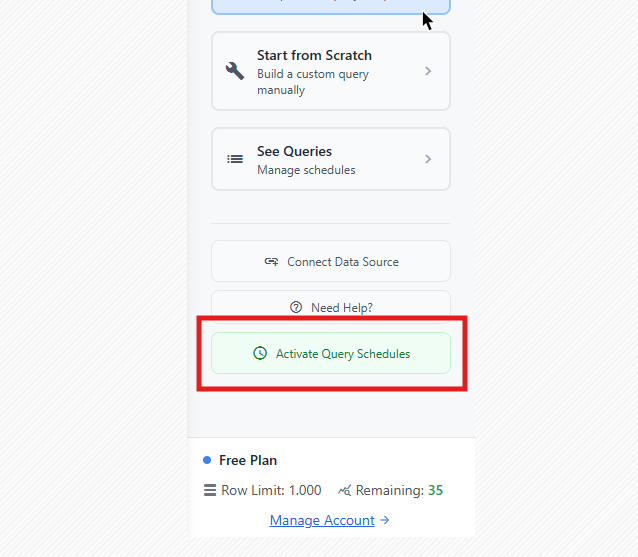 The Query Schedules feature is your gateway to automation. Click this button
in your Google Sheets sidebar to activate Google Sheet's offline access.
There are three instances where you can automate a query:
### Method 1: After Creating a New Query from Scratch
1. Create and run your query in the Detrics sidebar
2. After running the query, a pop-up will appear at the top of the Detrics sidebar
3. Activate the toggle to schedule automatic refreshes
4. Configure your schedule settings
### Method 2: Editing an Existing Query
1. Open the Detrics sidebar in Google Sheets
2. Go to **See Queries**
3. Click on the calendar with refresh icon 📅🔄
4. Set when you want the query to update
Detrics has autosave enabled by default. If you've opted out of autosave,
remember to save your query edits manually.
### Method 3: Creating a New Query from Template
1. Select **Start from Template** in the Detrics sidebar
2. Choose your data source and template
3. Run the template query
4. After running the template, a toggle to schedule will appear
5. Activate the toggle to enable automatic refreshes
Learn more about [using Query templates](/data-destination/google-sheets/how-to-use-query-templates) to streamline your workflow.
Every query needs to set its own refresh schedule. Only queries with scheduled
refreshes enabled will automatically update - unscheduled queries will remain
static until manually refreshed.
## How to Manage Existing Schedules
1. Open the Detrics sidebar
2. Go to **See Queries**
3. Click on the icon that looks like a calendar with a refresh 📅🔄
4. You can now either:
* **Edit the schedule**: Adjust frequency, time, or days
* **Delete the schedule**: Remove the automatic refresh entirely
Editing one Query's schedule doesn't change the settings of other queries.
Each Query maintains its own independent schedule configuration.
Need further help with scheduled queries? Contact our support team at
[support@detrics.io](mailto:support@detrics.io)
The Query Schedules feature is your gateway to automation. Click this button
in your Google Sheets sidebar to activate Google Sheet's offline access.
There are three instances where you can automate a query:
### Method 1: After Creating a New Query from Scratch
1. Create and run your query in the Detrics sidebar
2. After running the query, a pop-up will appear at the top of the Detrics sidebar
3. Activate the toggle to schedule automatic refreshes
4. Configure your schedule settings
### Method 2: Editing an Existing Query
1. Open the Detrics sidebar in Google Sheets
2. Go to **See Queries**
3. Click on the calendar with refresh icon 📅🔄
4. Set when you want the query to update
Detrics has autosave enabled by default. If you've opted out of autosave,
remember to save your query edits manually.
### Method 3: Creating a New Query from Template
1. Select **Start from Template** in the Detrics sidebar
2. Choose your data source and template
3. Run the template query
4. After running the template, a toggle to schedule will appear
5. Activate the toggle to enable automatic refreshes
Learn more about [using Query templates](/data-destination/google-sheets/how-to-use-query-templates) to streamline your workflow.
Every query needs to set its own refresh schedule. Only queries with scheduled
refreshes enabled will automatically update - unscheduled queries will remain
static until manually refreshed.
## How to Manage Existing Schedules
1. Open the Detrics sidebar
2. Go to **See Queries**
3. Click on the icon that looks like a calendar with a refresh 📅🔄
4. You can now either:
* **Edit the schedule**: Adjust frequency, time, or days
* **Delete the schedule**: Remove the automatic refresh entirely
Editing one Query's schedule doesn't change the settings of other queries.
Each Query maintains its own independent schedule configuration.
Need further help with scheduled queries? Contact our support team at
[support@detrics.io](mailto:support@detrics.io)