> ## Documentation Index
> Fetch the complete documentation index at: https://support.detrics.io/llms.txt
> Use this file to discover all available pages before exploring further.
# Connect a Platform
> Step-by-step guide to connecting your marketing platforms to Detrics
Connecting a platform takes less than a minute. The process is the same whether you are using the web app, Google Sheets sidebar, or Looker Studio.
## From the Web App
Log in to [app.detrics.io](https://app.detrics.io) and click **Data Sources** in the left sidebar.
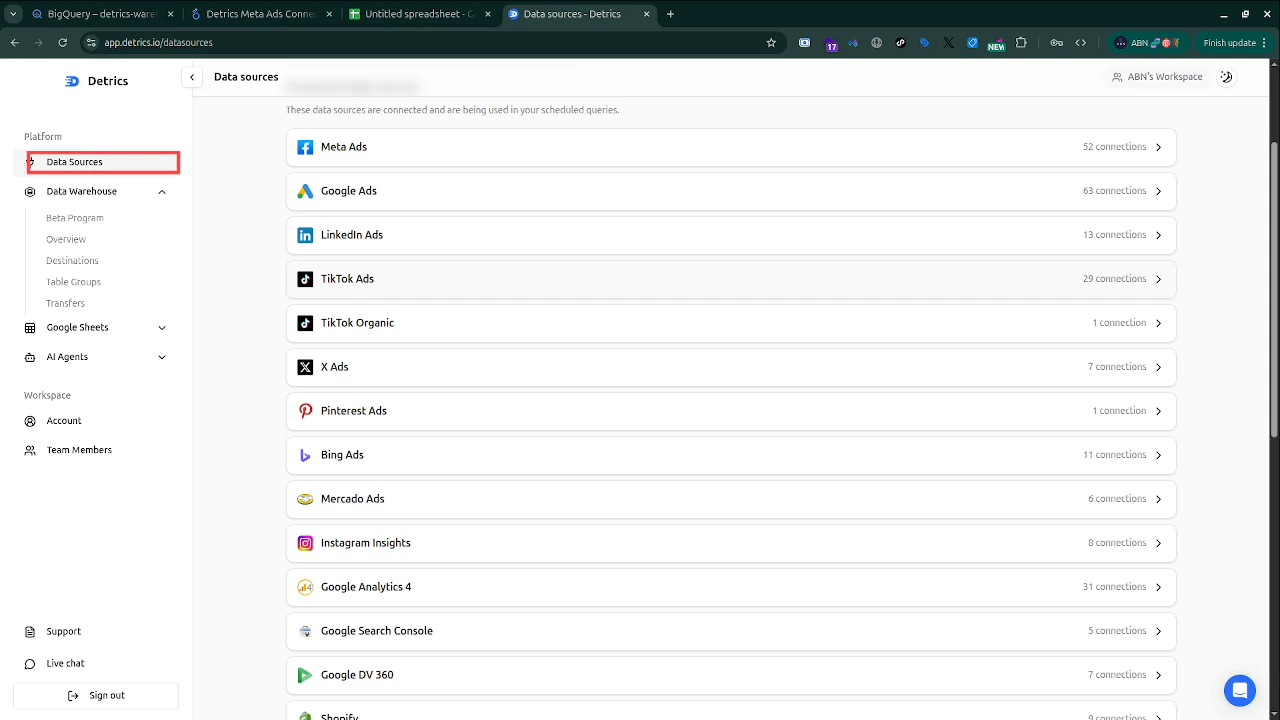 You will see all available platforms listed with their current connection counts.
Click on the platform you want to connect (e.g., Meta Ads, Google Ads, Shopify). This opens the platform's connection page.
Click the **Connect** button. You will be redirected to the platform's official OAuth authorization page. Sign in with the account that has access to the data you need, and grant Detrics read-only permission.
For Meta Ads, make sure you are logged into the Facebook account that has admin or analyst access to the ad accounts you want to query.
After authorizing, Detrics loads your available accounts. Select the ones you want to work with. You can always add more accounts later.
Your connection is ready. You can now use it in Google Sheets, Looker Studio, Claude, or the Data Warehouse.
## From Google Sheets
If you are working in Google Sheets, you can connect platforms directly from the Detrics sidebar.
Go to **Extensions > Detrics > Launch Detrics** in your Google Sheet.
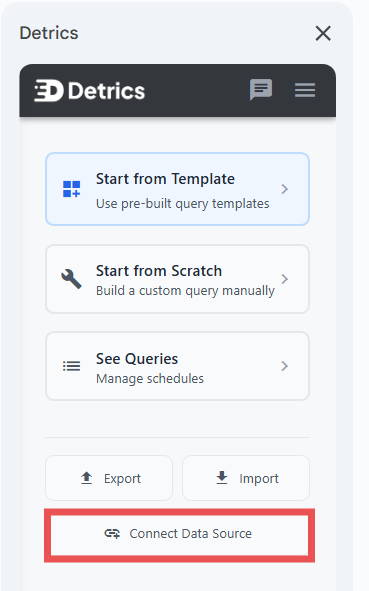
In the sidebar, click **Connect Data Source** and choose the platform you want to add.
You will see all available platforms listed with their current connection counts.
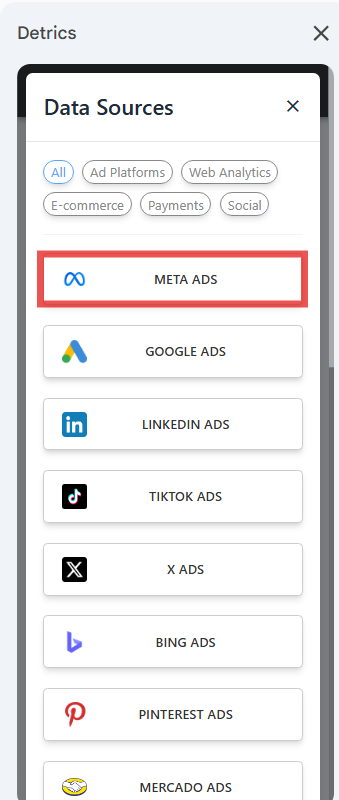
Click on the platform you want to connect (e.g., Meta Ads, Google Ads, Shopify). This opens the platform's connection page.
Click the **Connect** button. You will be redirected to the platform's official OAuth authorization page. Sign in with the account that has access to the data you need, and grant Detrics read-only permission.
For Meta Ads, make sure you are logged into the Facebook account that has admin or analyst access to the ad accounts you want to query.
After authorizing, Detrics loads your available accounts. Select the ones you want to work with. You can always add more accounts later.
Your connection is ready. You can now use it in Google Sheets, Looker Studio, Claude, or the Data Warehouse.
## From Google Sheets
If you are working in Google Sheets, you can connect platforms directly from the Detrics sidebar.
Go to **Extensions > Detrics > Launch Detrics** in your Google Sheet.
In the sidebar, click **Connect Data Source** and choose the platform you want to add.
 Select the data source from the list of available platforms.
 Complete the OAuth flow and select the accounts you want to use. The connection is now available in your workspace.
## From Looker Studio
For Looker Studio, connections are created during the connector setup process. See the [Looker Studio Quickstart](/looker-studio/quickstart) for the full walkthrough.
## Platform-Specific Notes
Some platforms have special requirements:
* **Meta Ads / Facebook**: You need admin or analyst access to the ad account. If you manage multiple Business Managers, make sure you authorize with the right Facebook account.
* **Google Ads**: Requires a Google account with access to the Google Ads MCC or individual accounts.
* **Shopify**: Uses a store-level connection. You need store owner or staff access.
* **Stripe / TiendaNube**: These use centralized tokens. One connection per account is shared across all workspaces.
If a connection fails or shows an error, see [Troubleshooting Connections](/connect/troubleshooting-connections) for solutions.
Complete the OAuth flow and select the accounts you want to use. The connection is now available in your workspace.
## From Looker Studio
For Looker Studio, connections are created during the connector setup process. See the [Looker Studio Quickstart](/looker-studio/quickstart) for the full walkthrough.
## Platform-Specific Notes
Some platforms have special requirements:
* **Meta Ads / Facebook**: You need admin or analyst access to the ad account. If you manage multiple Business Managers, make sure you authorize with the right Facebook account.
* **Google Ads**: Requires a Google account with access to the Google Ads MCC or individual accounts.
* **Shopify**: Uses a store-level connection. You need store owner or staff access.
* **Stripe / TiendaNube**: These use centralized tokens. One connection per account is shared across all workspaces.
If a connection fails or shows an error, see [Troubleshooting Connections](/connect/troubleshooting-connections) for solutions.