> ## Documentation Index
> Fetch the complete documentation index at: https://support.detrics.io/llms.txt
> Use this file to discover all available pages before exploring further.
# Create an AI Context
> Define which data sources and accounts your AI should query
## What are AI Contexts?
An AI Context is a saved configuration that tells Claude which platforms and accounts to use by default. Instead of specifying account IDs in every prompt, you create a Context once and reference it by name.
**Without an AI Context:**
```
Query my Facebook Ads data for account 1234567890, show me spend and ROAS for the last 30 days
```
**With an AI Context:**
```
Show me my performance report for the last 30 days
```
AI Contexts are shared with all workspace members, making them useful for agencies managing multiple clients or teams with recurring reports.
## Create a Context
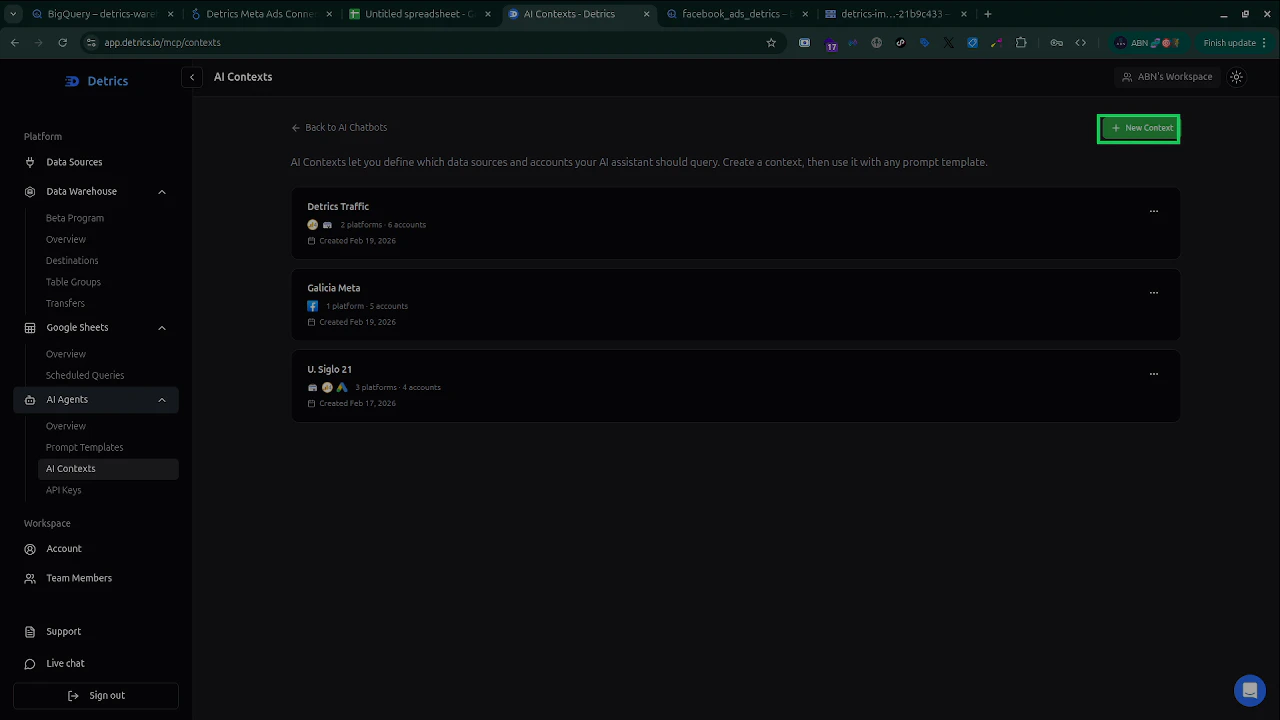
Open [app.detrics.io/mcp/contexts](https://app.detrics.io/mcp/contexts), or navigate to **AI Agents > AI Contexts** in the sidebar.
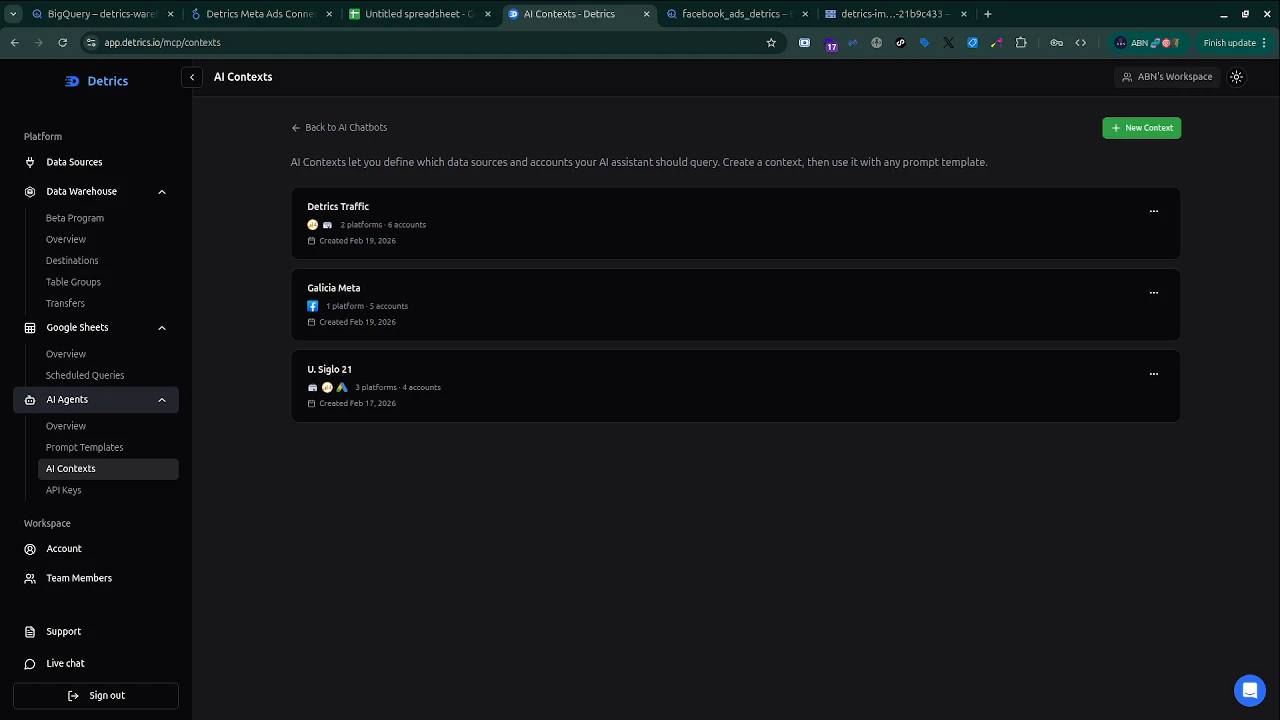 Click the green **+ New Context** button in the top right corner.
 Give it a descriptive name that Claude can understand in natural language.
**Good names:**
* "Weekly performance report"
* "Client A - Meta Ads"
* "All e-commerce accounts"
* "Detrics Traffic"
**Avoid generic names** like "Context 1" or "Test", the clearer the name, the easier it is for your AI to match your prompts to the right context.
Choose which platform connections and accounts this Context should include. You can select multiple platforms and multiple accounts from each platform.
You can add additional platforms by clicking **+ Add data source**.
Click **Save Changes**. Your Context is now available to Claude through the MCP tools.
## Use Contexts in Claude
Once you have created Contexts, reference them by name in your prompts:
```
List my available AI Contexts
```
```
Run the weekly performance report for the last 7 days
```
```
Show me the Client A Meta Ads data for this month
```
Claude will automatically list your Contexts, select the right one, and use it to query your data.
**Pair Contexts with Prompt Templates** for maximum efficiency. Create a Context for each client or report, then use [Prompt Templates](/claude/use-prompt-templates) with the "Use with Context" button to auto-fill the data scope.
## Managing Contexts
From [app.detrics.io/mcp/contexts](https://app.detrics.io/mcp/contexts) you can:
* **View all Contexts** in your workspace
* **Edit** existing Contexts to update platforms, accounts, or names
* **Delete** Contexts that are no longer needed
Changes take effect immediately. Claude will use the updated configuration on the next query.
## MCP tools for Contexts
Claude uses these MCP tools automatically when working with Contexts:
| Tool | What it does |
| ---------------------------------------- | -------------------------------------------------------- |
| `list_contexts` | Lists all Contexts available in your workspace |
| `get_context` | Gets the full details of a specific Context |
| `query_marketing_data` with `context_id` | Queries data using the Context's pre-configured settings |
See [Available Tools](/claude/available-tools) for the full tool reference.
Give it a descriptive name that Claude can understand in natural language.
**Good names:**
* "Weekly performance report"
* "Client A - Meta Ads"
* "All e-commerce accounts"
* "Detrics Traffic"
**Avoid generic names** like "Context 1" or "Test", the clearer the name, the easier it is for your AI to match your prompts to the right context.
Choose which platform connections and accounts this Context should include. You can select multiple platforms and multiple accounts from each platform.
You can add additional platforms by clicking **+ Add data source**.
Click **Save Changes**. Your Context is now available to Claude through the MCP tools.
## Use Contexts in Claude
Once you have created Contexts, reference them by name in your prompts:
```
List my available AI Contexts
```
```
Run the weekly performance report for the last 7 days
```
```
Show me the Client A Meta Ads data for this month
```
Claude will automatically list your Contexts, select the right one, and use it to query your data.
**Pair Contexts with Prompt Templates** for maximum efficiency. Create a Context for each client or report, then use [Prompt Templates](/claude/use-prompt-templates) with the "Use with Context" button to auto-fill the data scope.
## Managing Contexts
From [app.detrics.io/mcp/contexts](https://app.detrics.io/mcp/contexts) you can:
* **View all Contexts** in your workspace
* **Edit** existing Contexts to update platforms, accounts, or names
* **Delete** Contexts that are no longer needed
Changes take effect immediately. Claude will use the updated configuration on the next query.
## MCP tools for Contexts
Claude uses these MCP tools automatically when working with Contexts:
| Tool | What it does |
| ---------------------------------------- | -------------------------------------------------------- |
| `list_contexts` | Lists all Contexts available in your workspace |
| `get_context` | Gets the full details of a specific Context |
| `query_marketing_data` with `context_id` | Queries data using the Context's pre-configured settings |
See [Available Tools](/claude/available-tools) for the full tool reference.